In short: What is SAF-T?
SAF-T (Standard Audit File for Tax) is an accounting format developed by the Norwegian Tax Administration. It makes it easier to export and share accounting data in a standardized way – for example for audit, control, or import into Accountflow.
💡 All entities subject to bookkeeping requirements must be able to generate SAF-T files upon request from the Tax Administration.
Step by step: Use SAF-T import
1. Create a new company
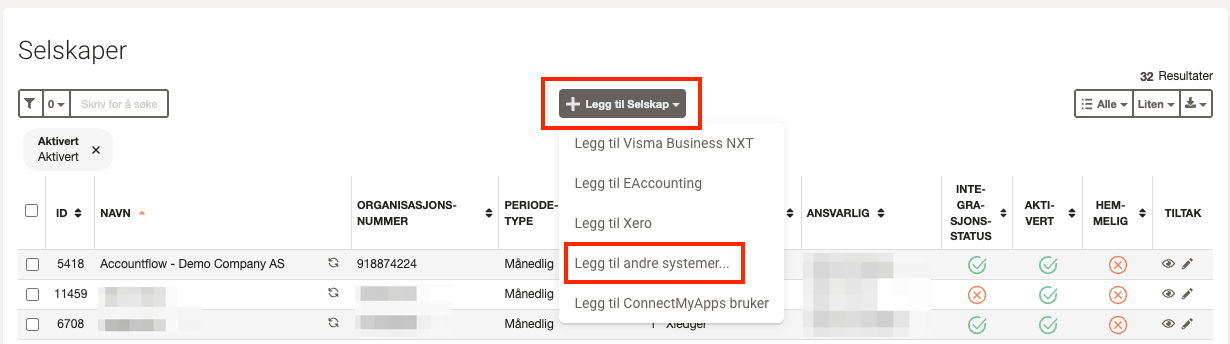
- Go to Company under Settings & Admin in the menu on the left.
- Click Add company and select Add other systems….
2. Fill in information
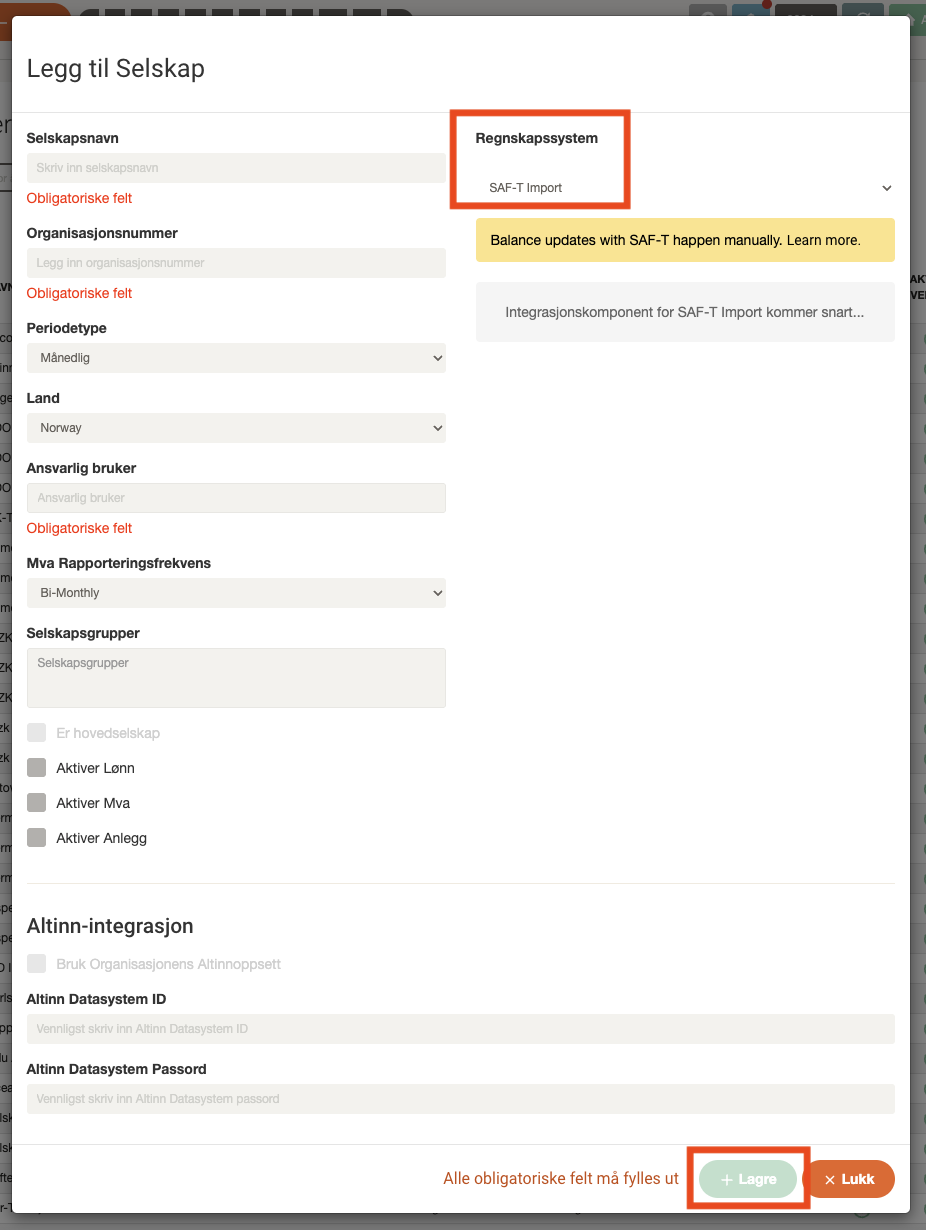
- Complete all required fields and select SAF-T import as the accounting system.
- Finish by clicking Save.
3. Go to the SAF-T portal
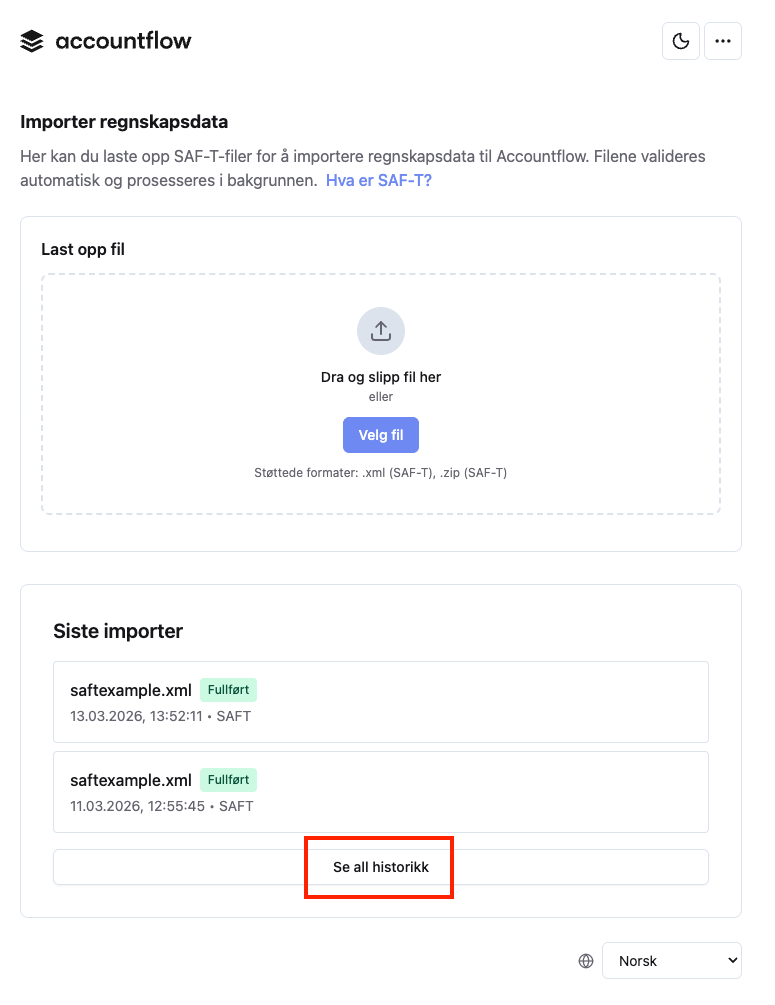
- Once the company is created, go to import.accountflow.com to upload the SAF-T file.
- Log in with your Accountflow user.
4. Select your file
- Click Select file or drag and drop the file into the upload field.
- If you want to upload several files, you can compress them into a ZIP file for faster upload.
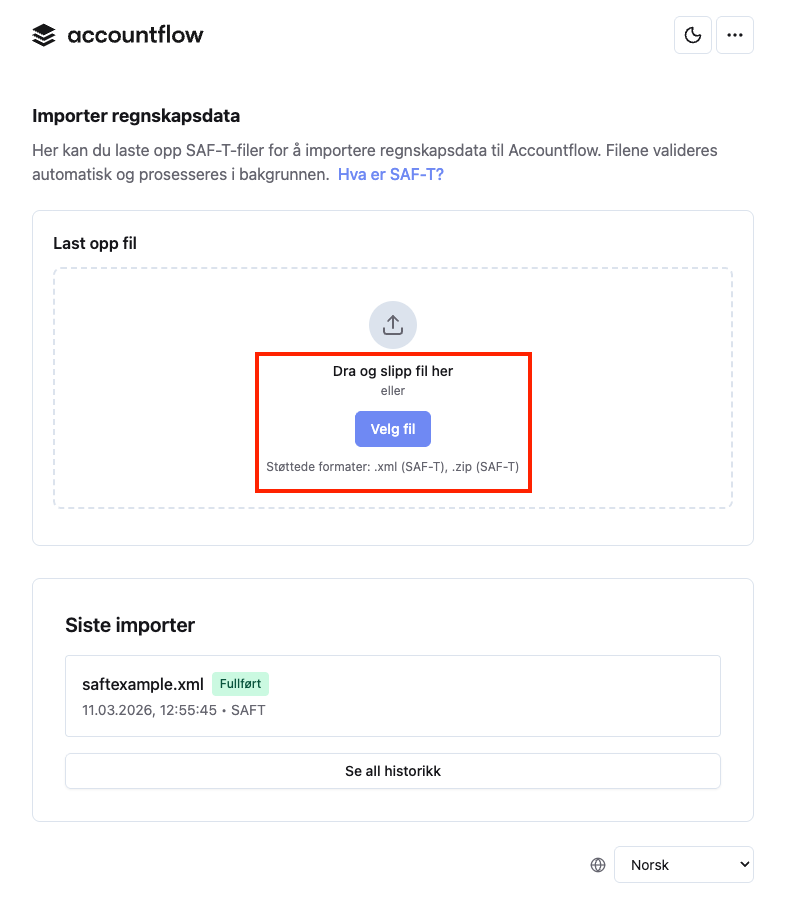
💡 The accounting data is automatically linked to the correct company based on the organization number in the SAF-T file.
5. Upload the file
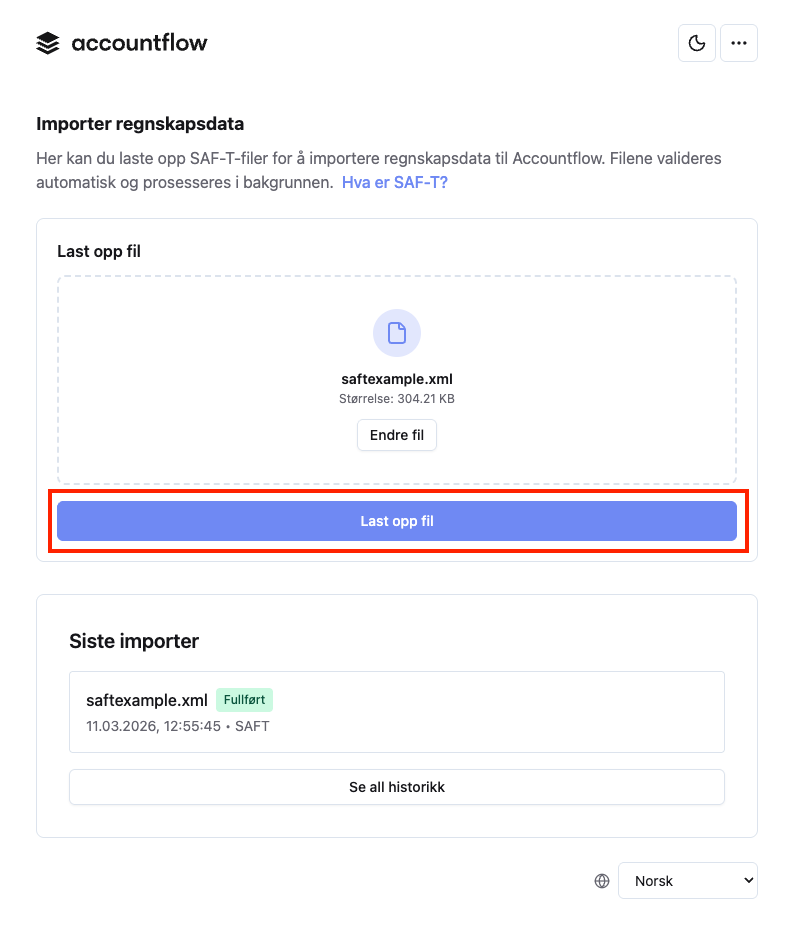
- Click Upload file.
- The system processes the file automatically, and you can follow the progress directly in the portal while the import is running.
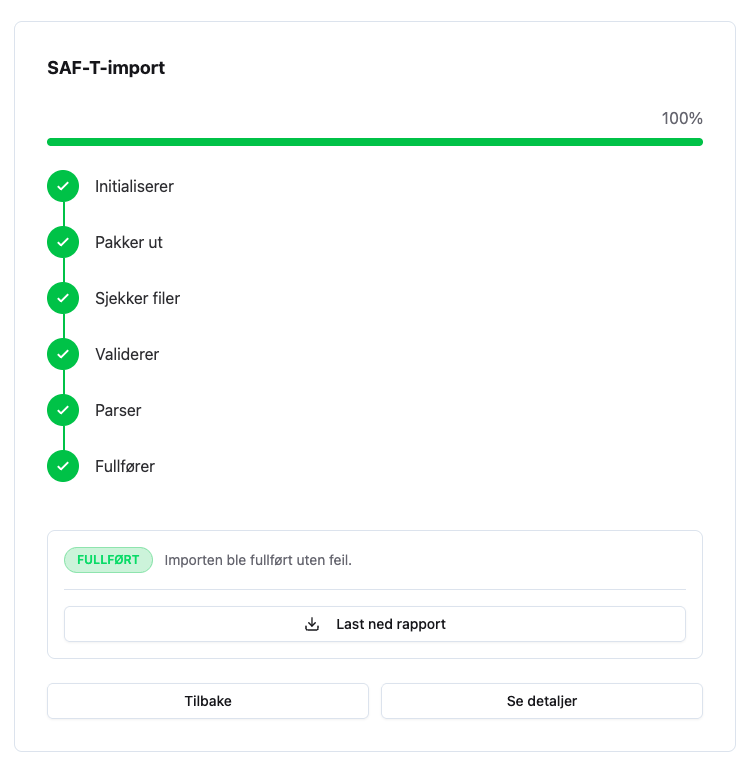
5. Check import status
- When the import is complete, you’ll see whether it was successful or whether any errors occurred.
- If something fails, you’ll get an error message with details about what went wrong.
6. Open import details or download report
- Click See details to view detailed information about the selected import.
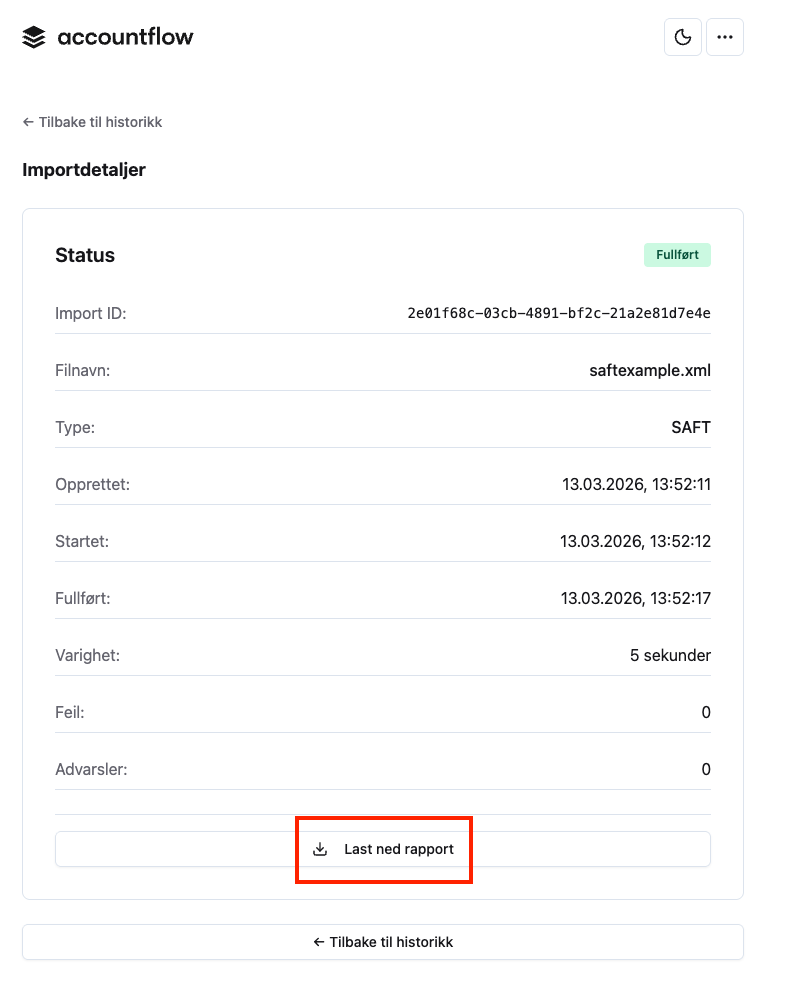
- Here you can see the file name, timestamps, duration, and any errors or warnings.
- You can also download the details as a PDF report by clicking Download report.
7. View previous imports in the history
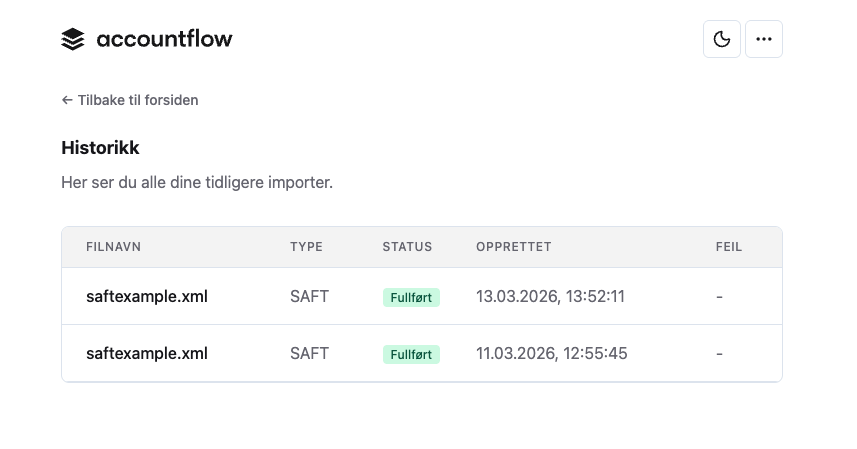
- Click See all history to open an overview of previous imports.
- Here you can see the status of each import and open the details for each one.