
Step by step: Upload and pin files
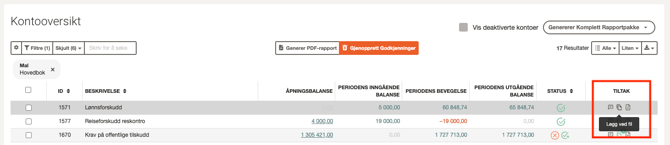
1. Find the account you want to upload a file to
You can upload documents in two ways:
a) Click the file icon in the Actions column.
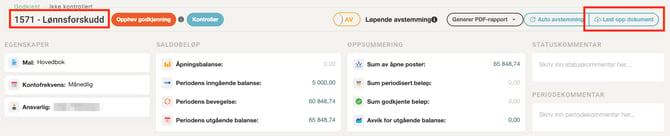
b) Open the account and click the Upload document button in the top right.
2. Upload file
- Drag and drop the file into the upload field, or click anywhere in the field to select a file from your computer.
- You can upload one or several files at the same time.
3. Pin the file
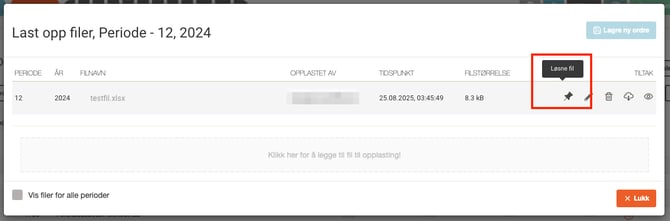
- Use the pin icon to control visibility:
- Light pin = the document is only visible in the period it was uploaded to.
- Dark pin = the document is visible in all periods of the same year.
- Click the icon to pin or unpin the file.
💡 Tip: Pin files actively to make important documentation visible throughout the year – e.g. annual agreements, procedure descriptions, or documentation that applies to multiple periods.