
Step by step: Update the balance
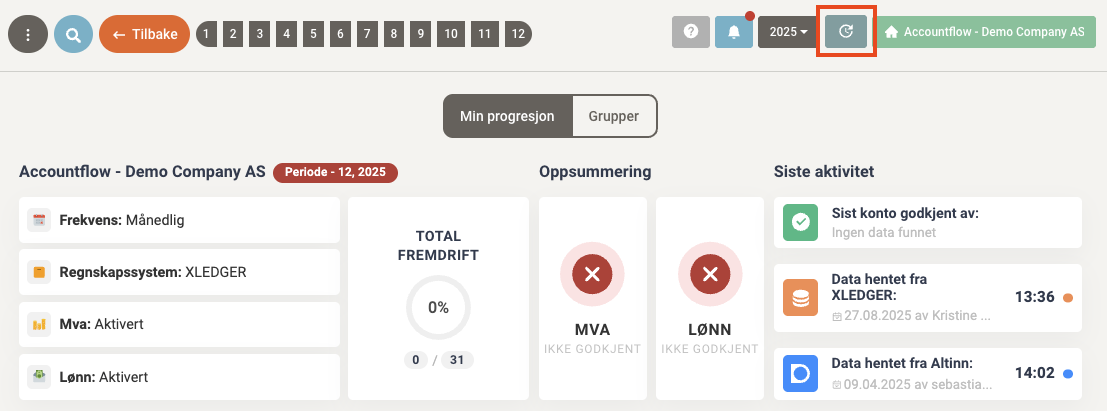
1. Click the update icon
- The button is located in the top right of the page, next to the company selector.
2. Select period
- In the Update balance data window, choose which periods to update by selecting the desired range in the period selector.
- Check Show 12 periods to view periods 1–12.
- Check Update single period to only select the current period.
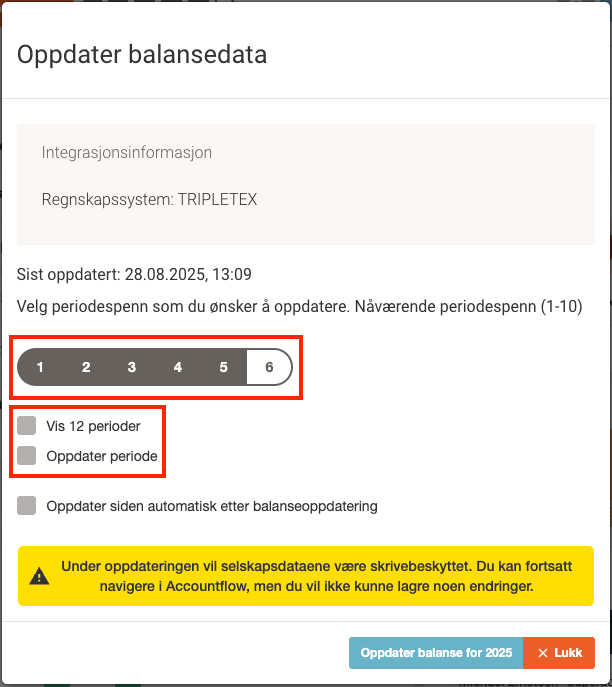
💡 If you want to retrieve data for the entire year, select the last period in the selector – this includes all earlier periods.
3. Choose automatic update (optional)
- If you want the page to refresh automatically after the trial balance has been loaded, check the box Refresh automatically after a balance update.
4. Click “Update balance”
- Once you have selected periods, click Update balance to retrieve the data.
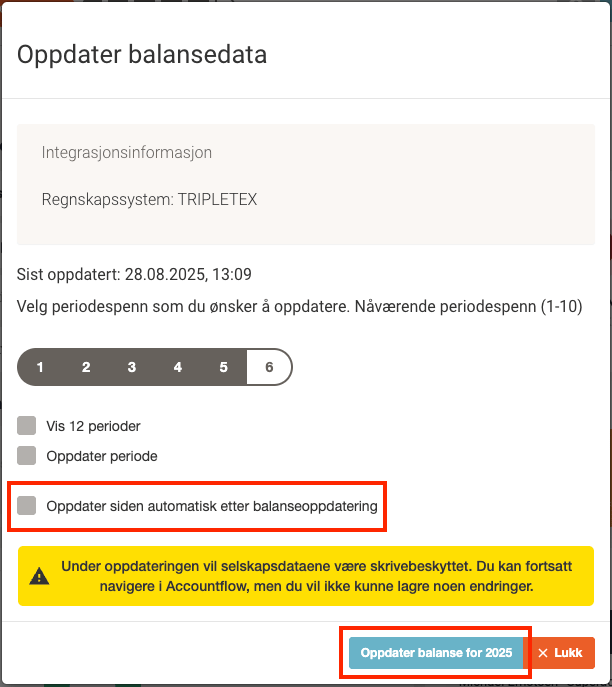
💡 While the update is running, you can navigate as usual in the system, but you cannot save any changes until the update is complete.