
💡 Before following this guide, you must contact Accountflow to receive a unique Reply URL. You cannot complete the setup without this value.
Requirements and limitations
- Compatibility: The solution has been tested against Microsoft Entra SAML Single Sign-On (Enterprise Applications – SSO).
- User creation: Accountflow does not support SCIM user synchronization. Users are created the first time they log in via SSO.
- Access and roles: Company access and group membership must still be assigned in Accountflow.
- Role management: Users can be assigned roles automatically by adding them to defined security groups in Entra.
Step by step: Configure SSO in Microsoft Entra
- Go to the Microsoft Entra ID portal.
- Go to Applications and select Enterprise Applications.
- Click New application.
- Select Create your own application.
- Give the application a name, e.g. Accountflow.
- Select Integrate any other application you don’t find in the gallery (Non-gallery) and click Create.
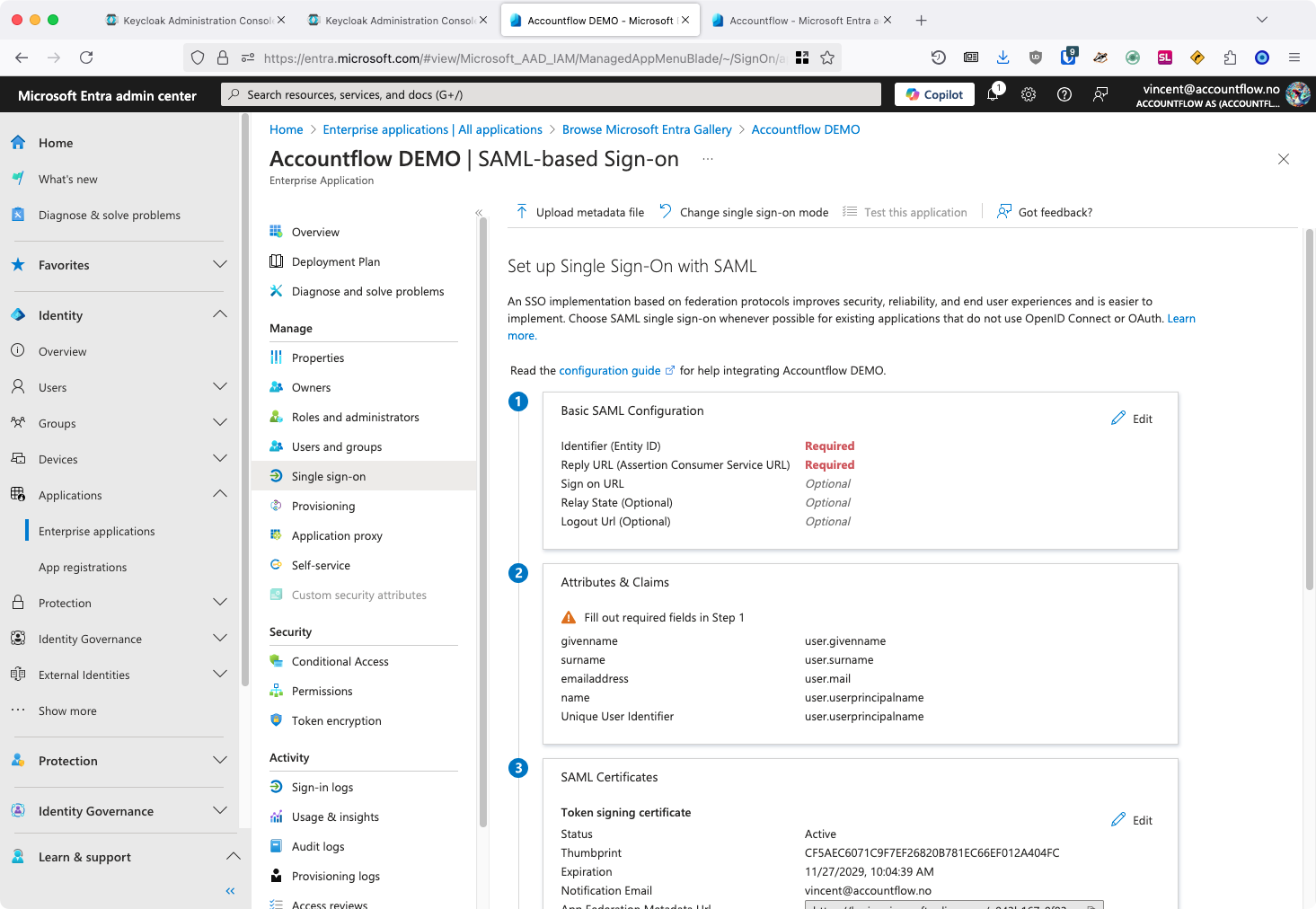
- Go to the application and select Single sign-on, then choose SAML.
- Click Edit under Basic SAML Configuration, and fill in the following:
- Identifier (Entity ID):
https://auth1.accountflow.com/realms/Production - Reply URL: Use the value you received from Accountflow
- Sign on URL:
https://app.accountflow.com - Leave the other fields blank and click Save.
- Identifier (Entity ID):
Step by step: Complete the configuration
- Go to Step 2 - Attributes & Claims:
- Click Unique User Identifier (Name ID) and select user.mail as Source attribute.
- Click Add a group claim, select Security groups, and set Source attribute to Group ID.
- Send the following to Accountflow:
- App Federation Metadata URL (from step 3 in the Entra setup)
- All URLs from step 4: Login URL, Microsoft Entra Identifier, and Logout URL
- When Accountflow has confirmed the setup:
- Go to Users and groups to add users who should have access.
- Create security groups to manage roles in Accountflow.
- Provide Accountflow with the Object ID for these groups so that mapping can be activated.