
Step by step: Add a new company
1. Go to Settings & Admin
- Click Company under Settings & Admin in the menu on the left.
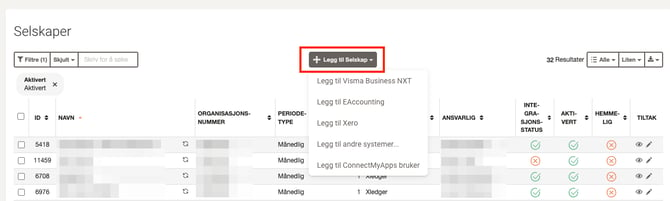
2. Click “Add company”
- Select the desired accounting system from the dropdown menu.
- If you do not see the correct system in the list, select Add other systems.
3. Enter company information
- Company name
- Company comment (optional internal note)
- Organization number
- Period type (e.g., monthly reconciliation)
- Start month for the financial year (if deviating)
- Start date for reconciliation (controls start of data retrieval including A07 messages)
- Responsible user (who will own the reconciliation)
- VAT reporting frequency
- Company groups (if applicable)
- Tick any modules you wish to activate: Payroll, VAT, Assets
- Accounting system (select your system from the dropdown list)
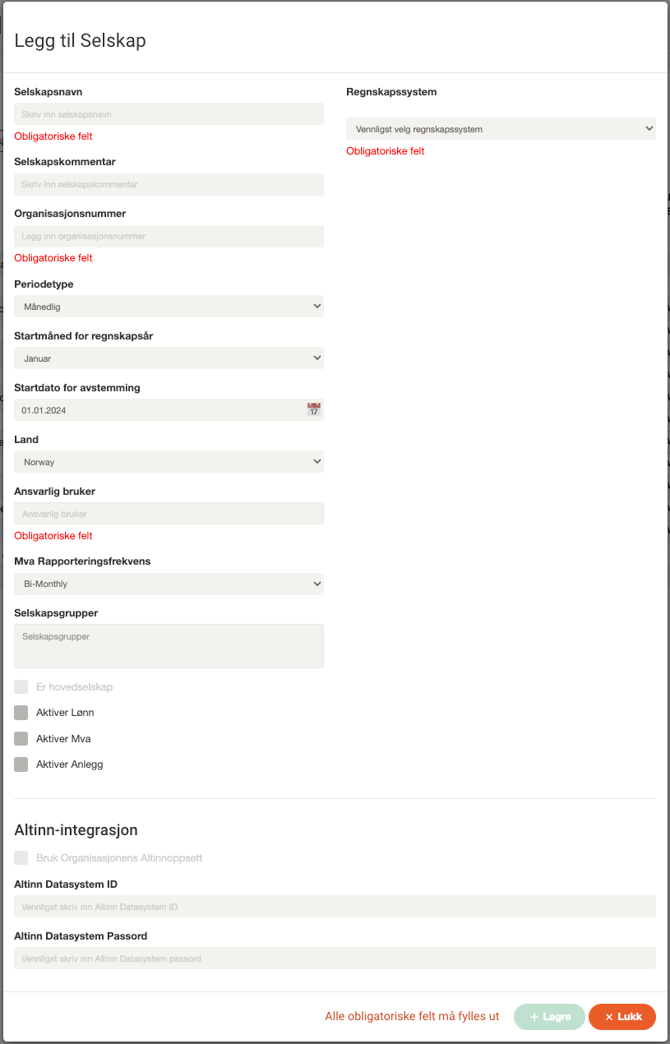
Note that the form might look slightly different depending on the accounting system you choose.
💡 In some accounting systems, you must validate the integration by clicking the green Validate button before saving.
4. Click “Save”
- When all information is completed, click Save to finish the setup.
- The company is now active.