
💡 Once set up, Accountflow can retrieve A-melding using an approved System User. You won't need to connect via ID-porten each time you retrieve A06/A07.
Before you start
You need Superadministrator access in Accountflow to create and manage the System User setup for your organization.
The person approving the request in Altinn must have the right to grant Accountflow access to A-melding for the relevant organization.
The setup applies to the organization the company is linked to in Accountflow. If several companies belong to the same organization, they can use the same default System User unless you choose separate exceptions or overrides.
Step by step: Create a System User
1. Go to Organization
- Go to Settings & Admin in the menu on the left.
- Click Organisasjon.
2. Open A-melding System User
- Select the A-melding Systembruker tab.
- Check that the text at the top shows the correct organization.
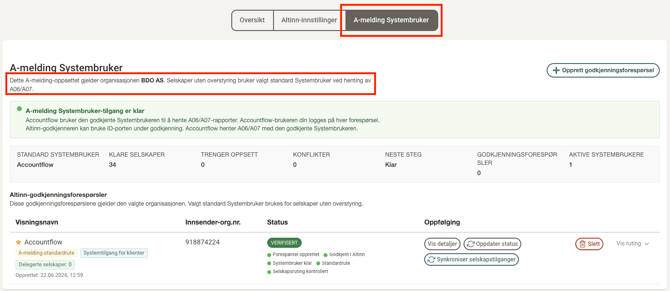
3. Create an approval request
- Click Create approval request.
- Choose the setup type:
- Egen systemtilgang - when A06/A07 should be retrieved for your own organization
- Systemtilgang for klienter - when A06/A07 should be retrieved for other organizations
- Enter the organization number the request applies to.
- Choose a descriptive display name.
- Finish by clicking Create.
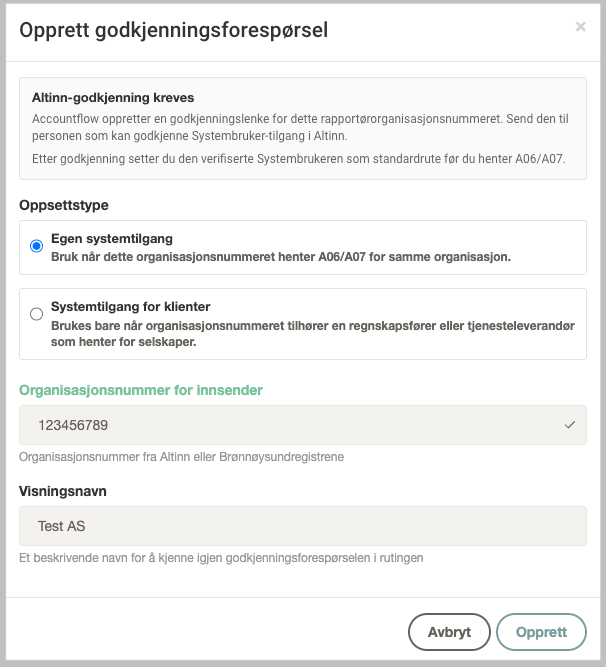
💡 Accountflow now creates a request in Altinn. Once the request has been created, an Altinn approval link is shown.
4. Open or copy the Altinn link
- Click Åpne Altinn-godkjenning to open the request directly in a new tab.
- You can also click Kopier lenke and send the link to the person who will approve it in Altinn.
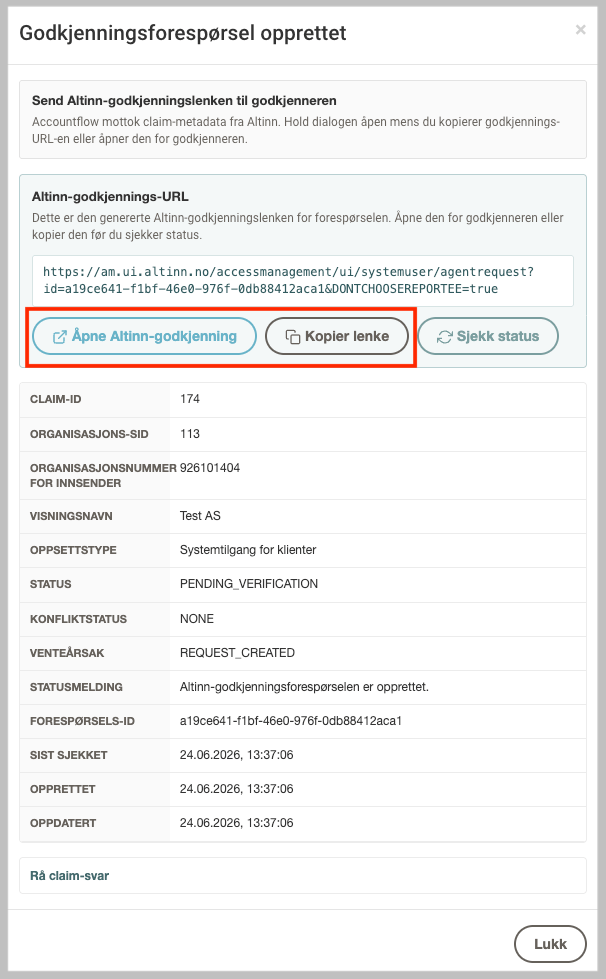
⚠️ You can close the window while you wait for approval, but don't delete the request.
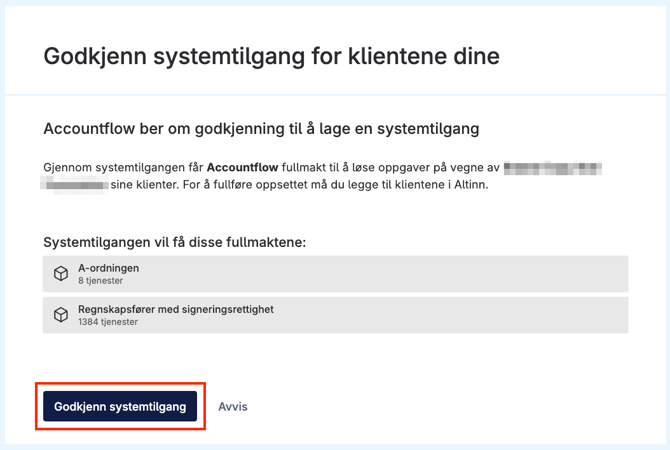
5. Approve the request in Altinn
- Log in to Altinn with a user who can approve access for the organization.
- Follow the instructions and approve the request from Accountflow.
- Return to Accountflow once the approval is complete.
6. Check status in Accountflow
- Click Sjekk status on the request.
- Once the request is approved in Altinn, the status in Accountflow updates to Verified.
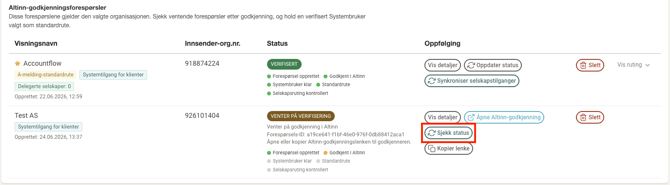
💡 In some cases, Accountflow shows the request as approved, but the System User is still waiting for activation. Wait a moment and click Check status again.
7. Set the default System User
Once the System User is verified, it can be used to retrieve A06/A07.
- Click Set as standard route if the System User should be used for the organization.
- Check that the status shows A-melding System User access is ready.
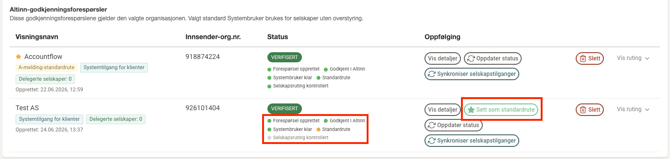
💡 Companies without their own override use the default System User when retrieving A06/A07.
If some companies should use a different System User
You can use several System Users if the organization has companies that need to be routed to different Altinn accesses.
1. Create or verify an additional System User
- Create a new approval request the same way as described above.
- Approve the request in Altinn.
- Click Check status until the System User is verified.
2. Open the System User's details
- Click Show routing on the right of the row for the verified System User.
- In the Assigned companies and Assigned groups fields, choose which companies and/or company groups should use this System User.
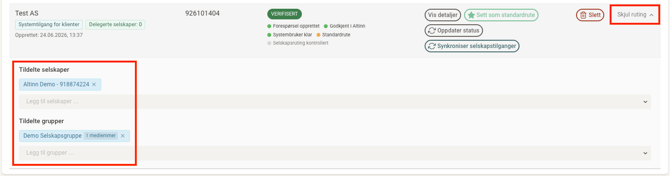
💡 A company rule overrides a group rule. A group rule overrides the default System User.
What do the statuses mean?
Pending Verification
The request has been created, but Accountflow can't use the System User yet. The request must be approved in Altinn – see step 5.
Waiting for Systembruker
Altinn has approved the request, but the System User isn't available to Accountflow yet. Wait a moment and click Check status again.
Verified
The System User is approved and can be used for A06/A07 once it's selected as default or routed to a company.
Conflict or blocked
Accountflow can't use the System User with the current setup. Read the message in the row and correct the setup before trying to retrieve A06/A07 again.
Retrieve A06/A07 after setup
Once the setup is complete, retrieve A06/A07 from Payroll.
- Go to Payroll under Reconciliation.
- Click Hent A-melding.
- Select periods.
- Click Fetch from Altinn.
For several companies, click Hent A-melding (flere), select companies or company groups, and start the retrieval.
If a company is missing a valid System User route, Accountflow shows a message that System User setup is required. Go back to A-melding System User and check the default System User or the routing setup for the company.
FAQ
Do I need to use ID-porten for A06/A07?
No. A06/A07 is retrieved using an approved System User and Maskinporten. ID-porten is not used as a fallback for A06/A07.
How long does the Altinn approval link last?
The link is tied to the request Accountflow has created in Altinn. If the link doesn't work, open the request details in Accountflow and copy the link again. If the request has been rejected or withdrawn, you'll need to create a new request.
Can one System User be used for several companies?
Yes, if the companies belong to the same organization and the System User has access to A-melding for those companies. Select the System User as default for the organization, or use separate rules for companies and groups that should use a different System User.
What do I do if retrieval still fails?
- Check that the System User is verified.
- Check that the correct System User is selected as default.
- Check whether the company is excluded from the default or has its own routing.
- Click Check status on the System User before trying to retrieve again.