💡 Revalidation may be necessary if the integration between the systems has been interrupted – for example, if access rights have changed, the connection has expired, or you experience that data is not updating as expected.
Step by step: Revalidate accounting system
1. Go to Settings & Admin
- Click Company under Settings & Admin in the menu on the left.
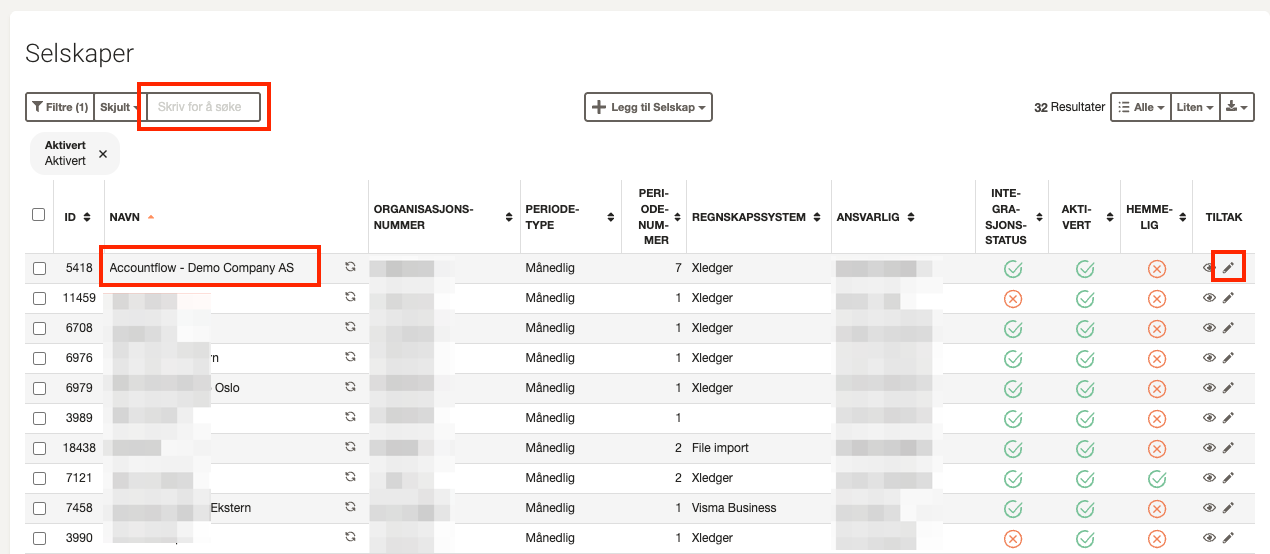
2. Find the company
- Use the search field or scroll through the list to find the company you want to validate.
- Click the pencil icon in the Actions column on the far right.
3. Open connection setup
- Under Accounting system, click Change credentials.
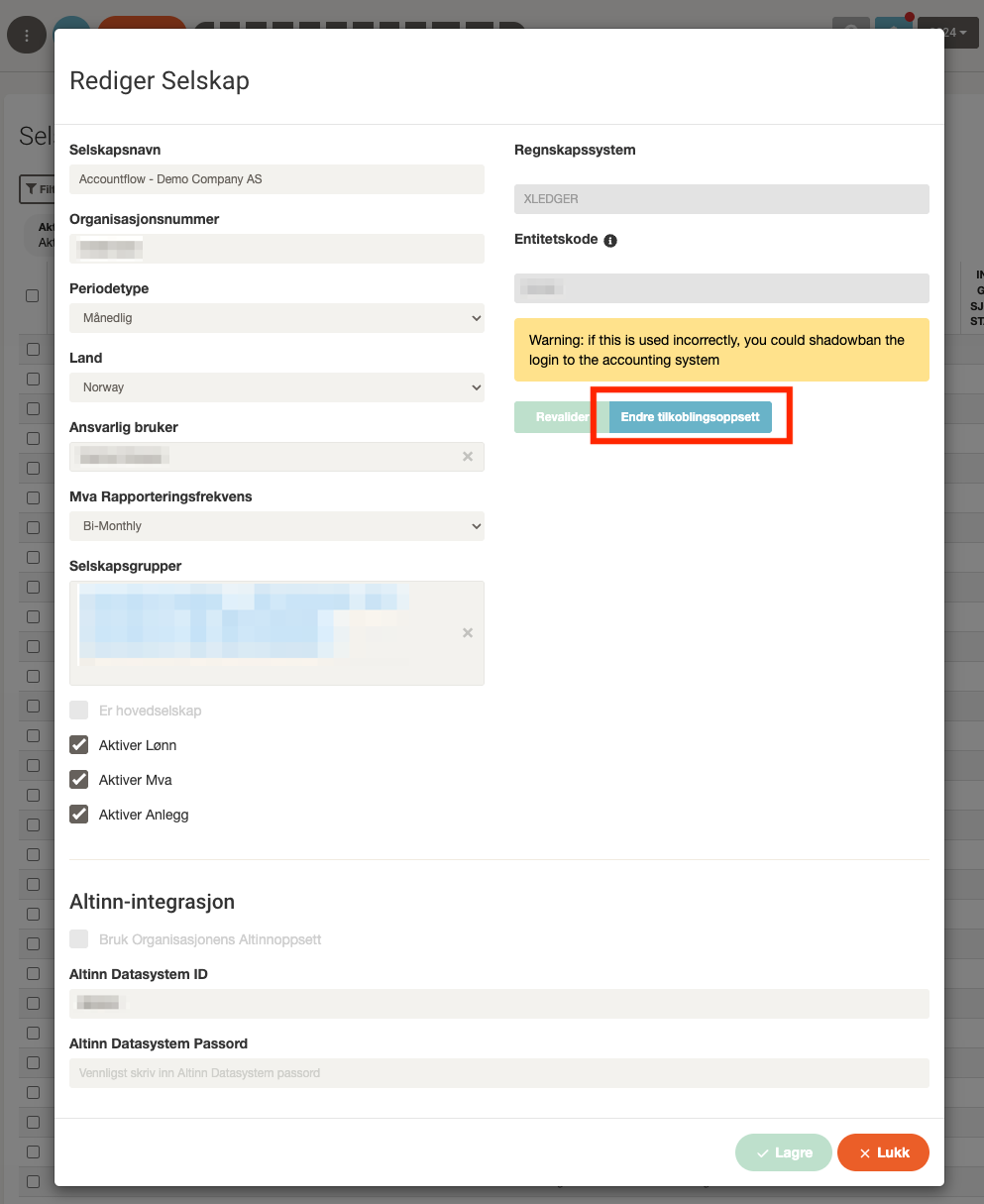
4. Validate new setup
Depending on the accounting system, you must validate with one of the following:
- User key (token)
- Username and password
💡 Note: Some systems also require fields such as Entity code. Make sure you have the correct information before validating.
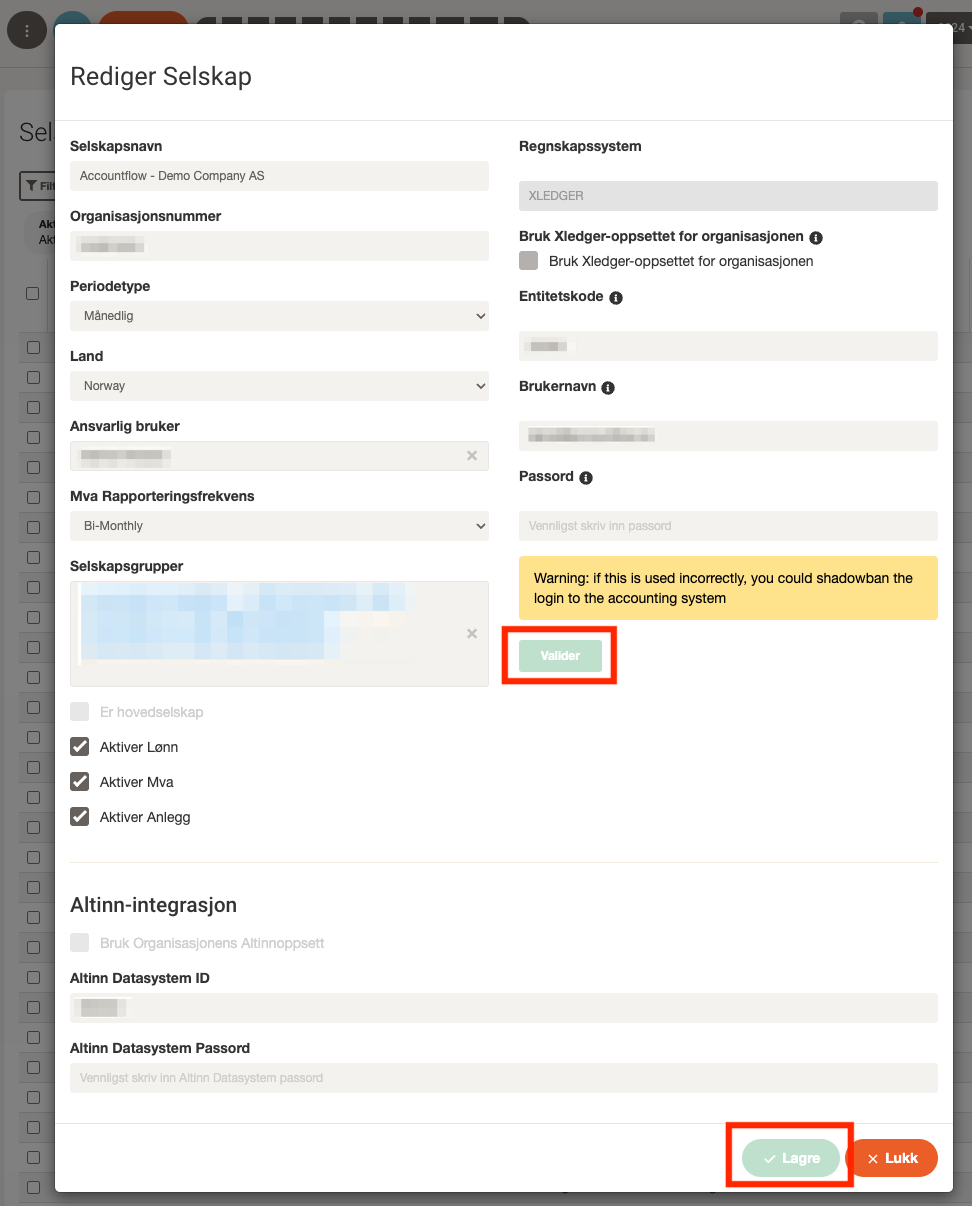
5. Click “Validate”
- Once you have entered the correct information, click Validate.
6. Save company setup
- Finally, click Save at the bottom of the window to complete the editing and save the new setup.