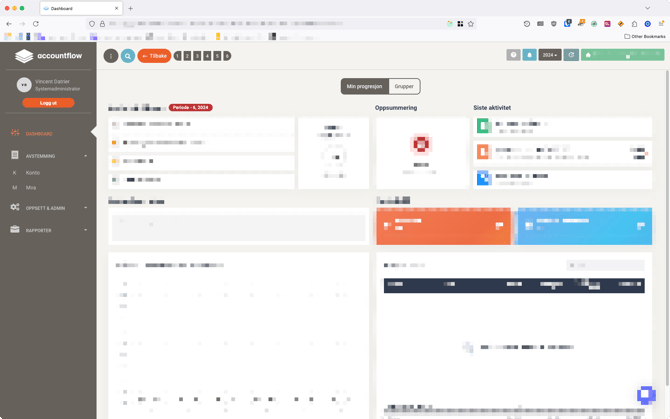
💡 Note that your organization must have set up Single Sign-on before you can log in with SSO in Accountflow. Follow this guide to set up SSO in your organization.
Step-by-step: Log in with SSO
Step 1: Go to the login page
- Go to app.accountflow.com.
- Enter your email address and click Log in.
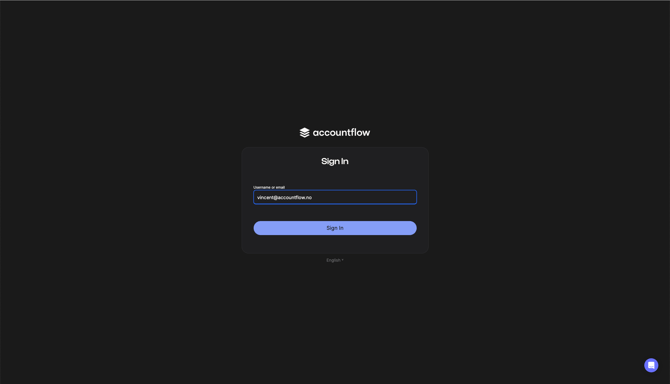
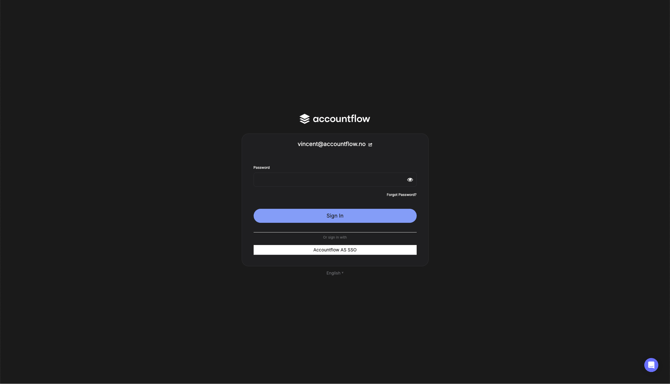
- You will then see a window where you can choose to log in with a password or with SSO from your organization.
- Click Log in with SSO.
Step 2: Confirm your account
- You will now be asked to either confirm your information or link SSO to an existing account.
- Click Add to existing account.
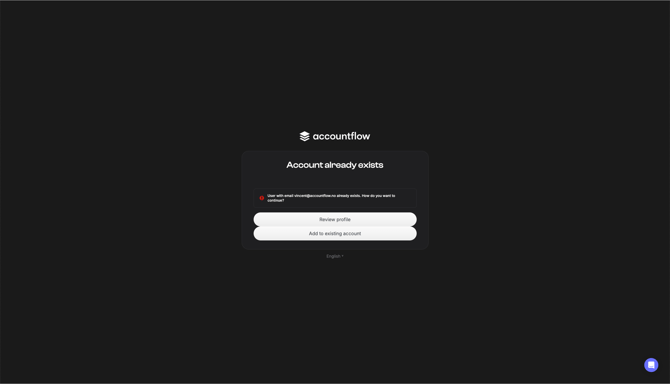
- You will now receive an email with a link to confirm the connection to your account.
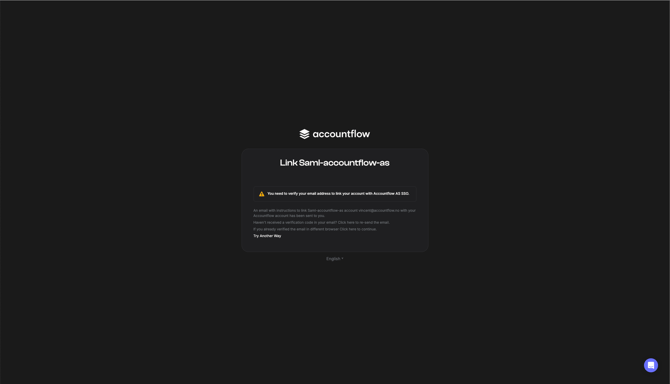
Step 3: Click the confirmation link
- Open the email and click Link to confirm account linking.
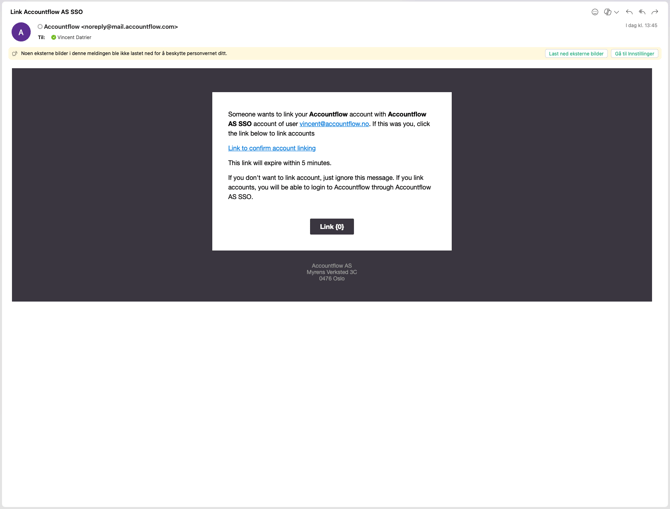
💡 The confirmation link is valid for 5 minutes. If you do not click the link within 5 minutes, you will need to restart the process.
Step 4: Complete access to your account
- Once you have confirmed the connection, you will be redirected back to your account.
- You now have full access to Accountflow and can easily log in with SSO going forward.