Step by step: Link VAT codes
1. Go to VAT settings
There are two ways to access VAT settings:
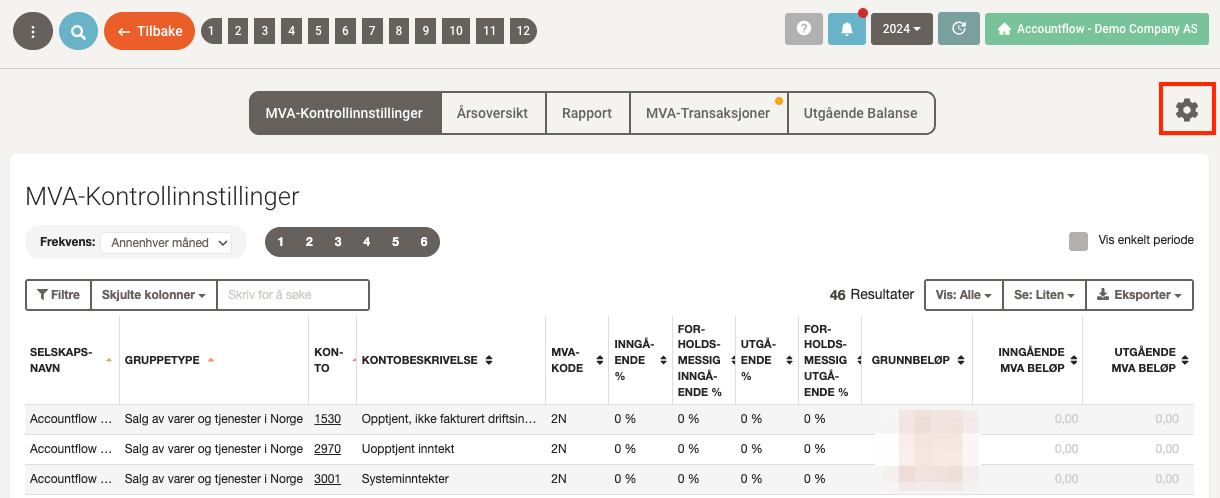
a) Go to VAT under Reconciliation in the menu on the left, and click the gear icon in the top right of the page.
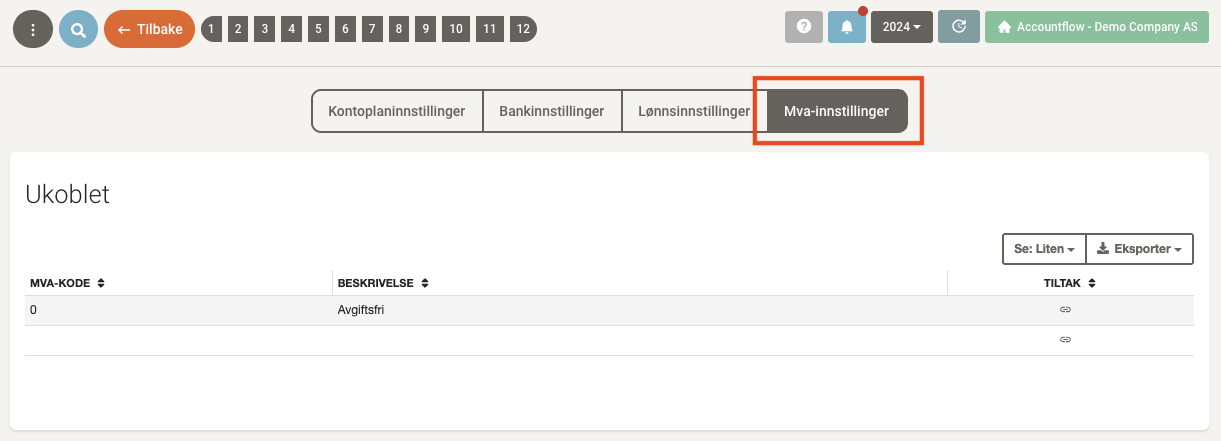
b) Go to Reconciliation under Settings & Admin in the menu on the left, and select the VAT settings tab at the top right of the page.
2. Link code
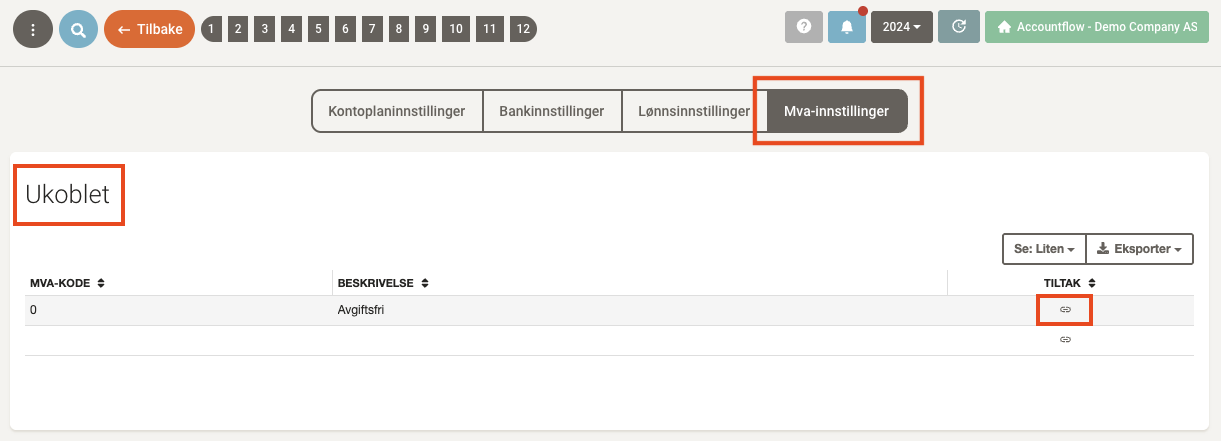
- Any unlinked codes are displayed in the Unmapped items list.
- Click the link icon in the Actions column next to the unlinked code to add the correct codes and rates.
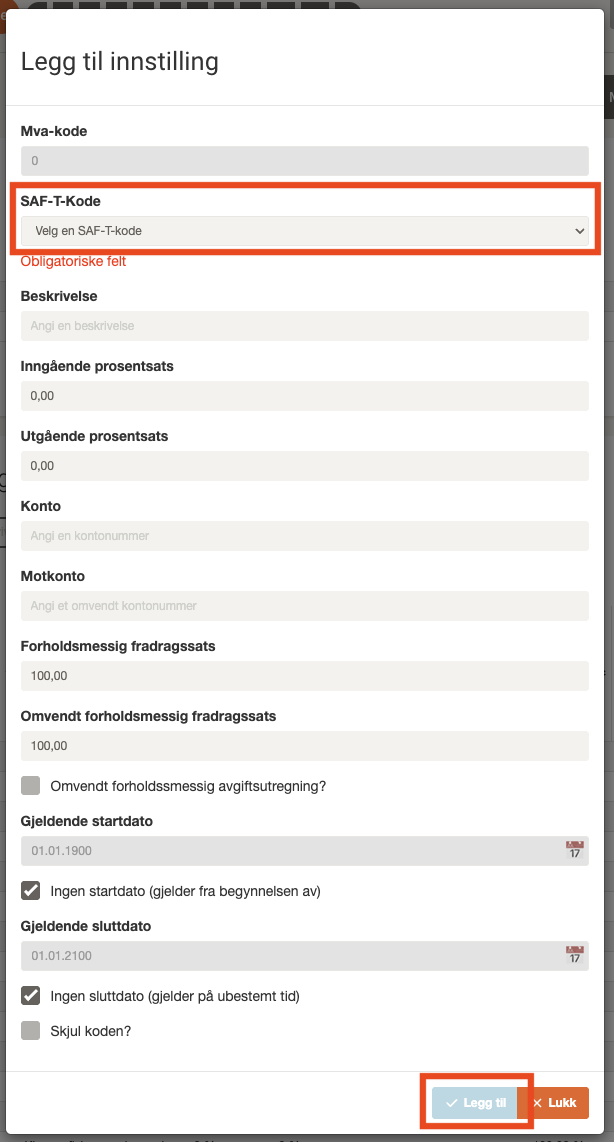
3. Enter the correct code and rate
- Select the correct SAF-T code.
- Enter the correct combination of account and rate.
- Click Add to save the link.
💡 Not sure which values to use? Check your accounting records or look up vouchers in Account Details under Reports in the menu on the left.
4. Edit or delete links
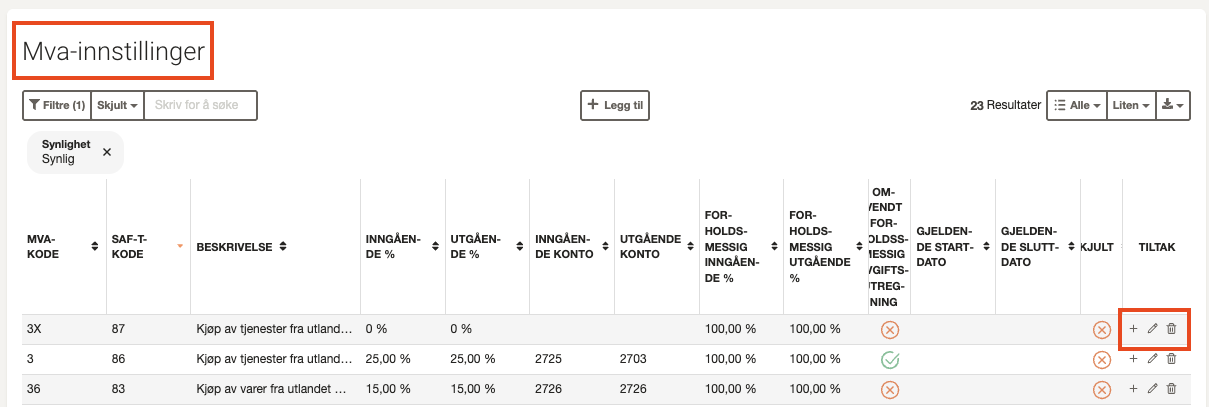
- All linked codes are displayed in the VAT settings list.
- Click the pencil icon in the Actions column to edit a link.
- Click the trash can icon to remove a link.
- Click the plus icon if you only want to change the date range of a link.