Step by step: Create and use reconciliation rules
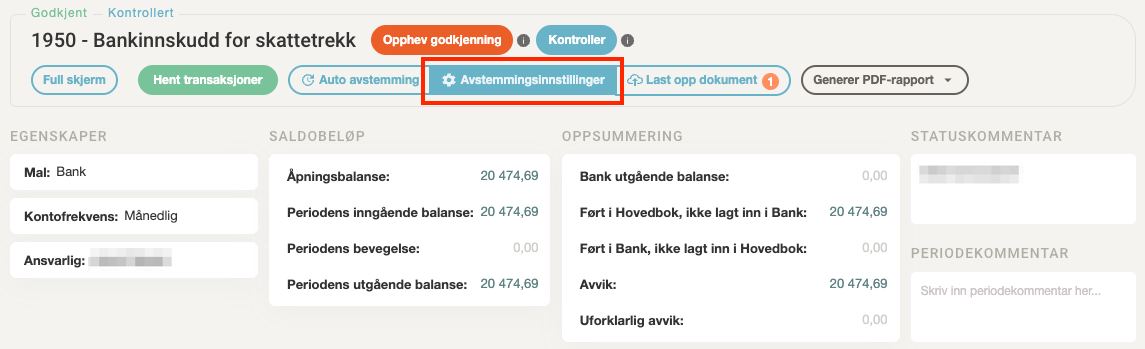
1. Go to the account you want to reconcile
- Go to Account under Reconciliation in the menu on the left, and click the desired account in the account overview.
- The account must use the Bank template to be able to use reconciliation rules.
- Click Reconciliation Settings.
2. Create a new rule
- Click + Add rule.
- Select the type of rule you want to create:
- One to one: one bank transaction matches one general ledger transaction.
- One to many: one general ledger transaction matches multiple bank transactions.
- Many to one: multiple general ledger transactions match one bank transaction.
- Many to many: multiple general ledger and bank transactions match together.
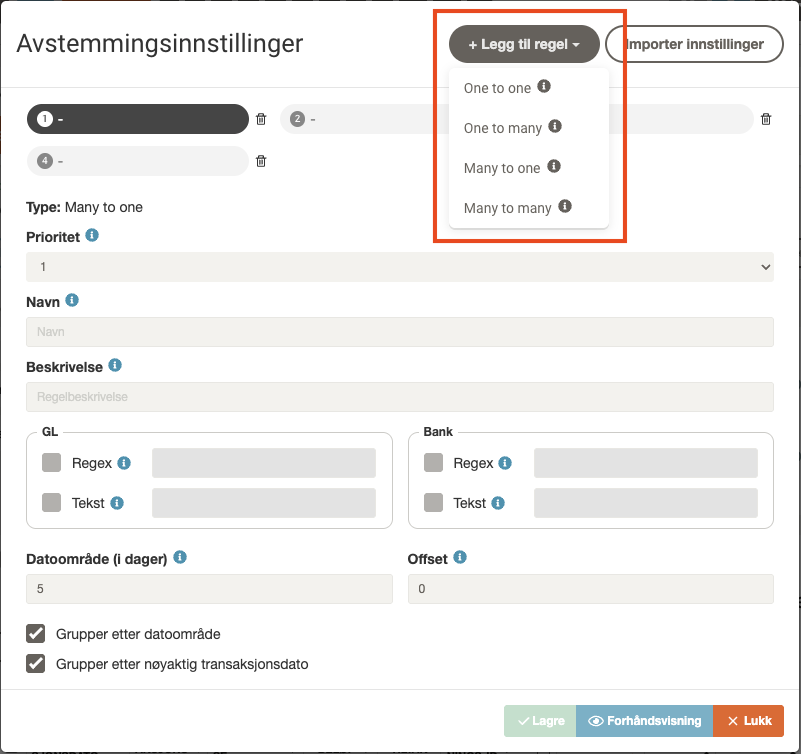
💡 By default, four predefined rules are set up. You can edit, delete, and add more if needed.
3. Set up rule parameters
- Give the rule a name and description.
- Specify Priority if you have multiple rules – the system uses the rules in the order you set here.
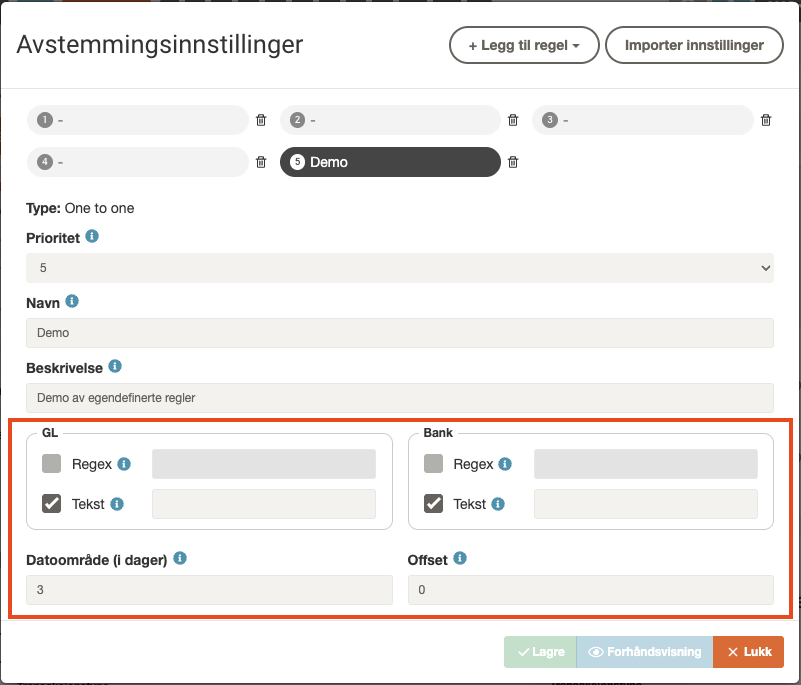
- Use the Text fields to filter content in the description from general ledger (GL) and/or bank.
- You can also use Regex for advanced filtering.
💡 Use text filtering if you want the system to find transactions with e.g. the word “customers” in the description.
4. Adjust date range and offset
- The Date range determines how many days the system should look for a match.
- Offset shifts this range forward or backward in time.
- Example: Date range 5 and offset 10 = search 10–14 days after the general ledger transaction.
- Use negative offset to search backwards in time.
5. Preview and save
- Click Preview to see which transactions are matched based on the rules you set.
- Click Save when everything looks correct.
💡 The system previews which lines it can reconcile based on the rules you created.
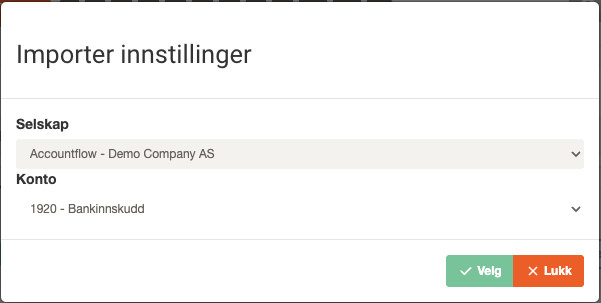
6. Import settings from other accounts (optional)
- If you want to use the same rules you already set up on another account or in another company, click Import settings to retrieve the rules.