In short
- A user group is a collection of users and is used to grant access to several people at once.
- A company group is a collection of companies.
- You can grant access to individual users or entire user groups.
- You don’t need to add the same person both as an individual user and via a user group – one of the two is enough.
Step by step: Create a user group
1. Go to the group overview
- Click Group under Settings & Admin in the menu on the left.
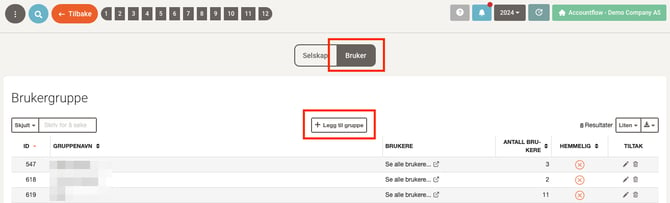
- Switch to the User tab at the top of the page.
2. Click “Add group”
- Click Add group at the top of the overview.
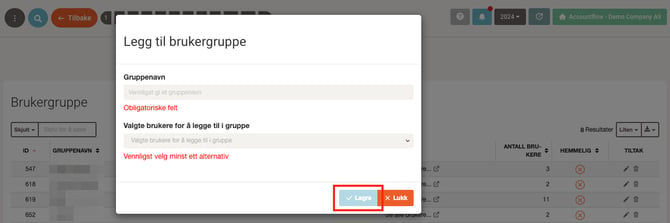
3. Fill in information
- Enter a name for the user group.
- Select which users should be included.
- Click Save to create the group.
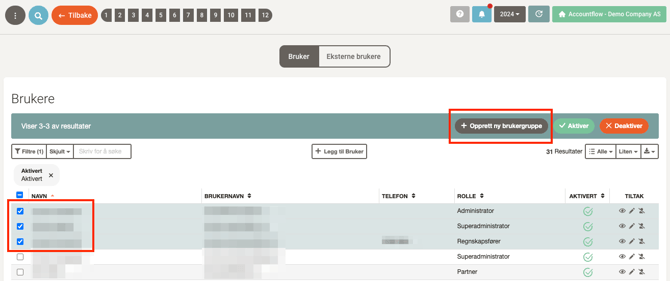
💡 Tip: You can also create a user group directly from the user list. Go to User under Settings & Admin, check one or more users, and click Create new user group. Remember that a group must always contain at least one user.