💡 Note: For security reasons, it is no longer possible to set or change passwords manually. The user will receive an email with a link to set their own password.
Step by step: Add a new user
1. Go to Settings & Admin
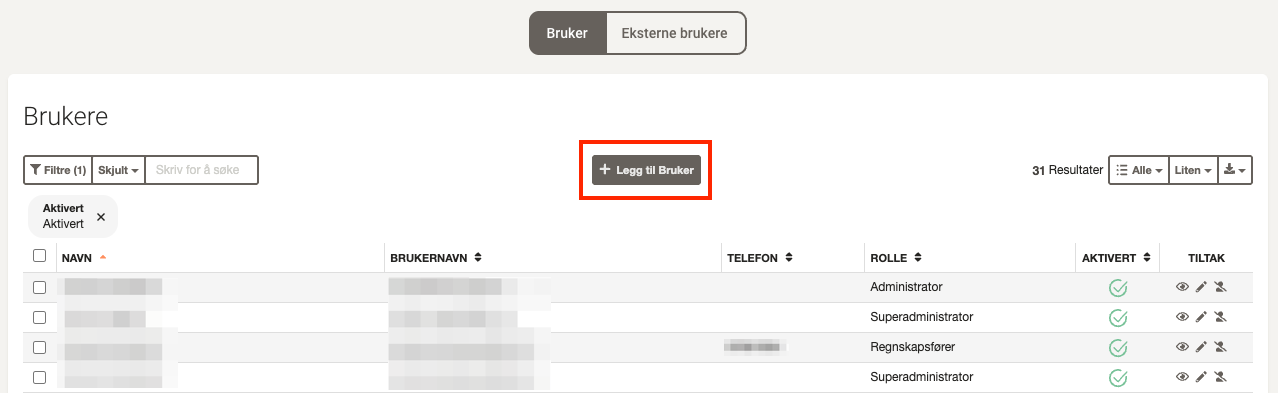
- Click User in the menu on the left.
2. Click “Add user”
- At the top of the user list, click the + Add User button.
3. Fill in user information
In the form, fill in the following fields:
- Name
- Username (email address)
- Phone number
- Language
- Theme
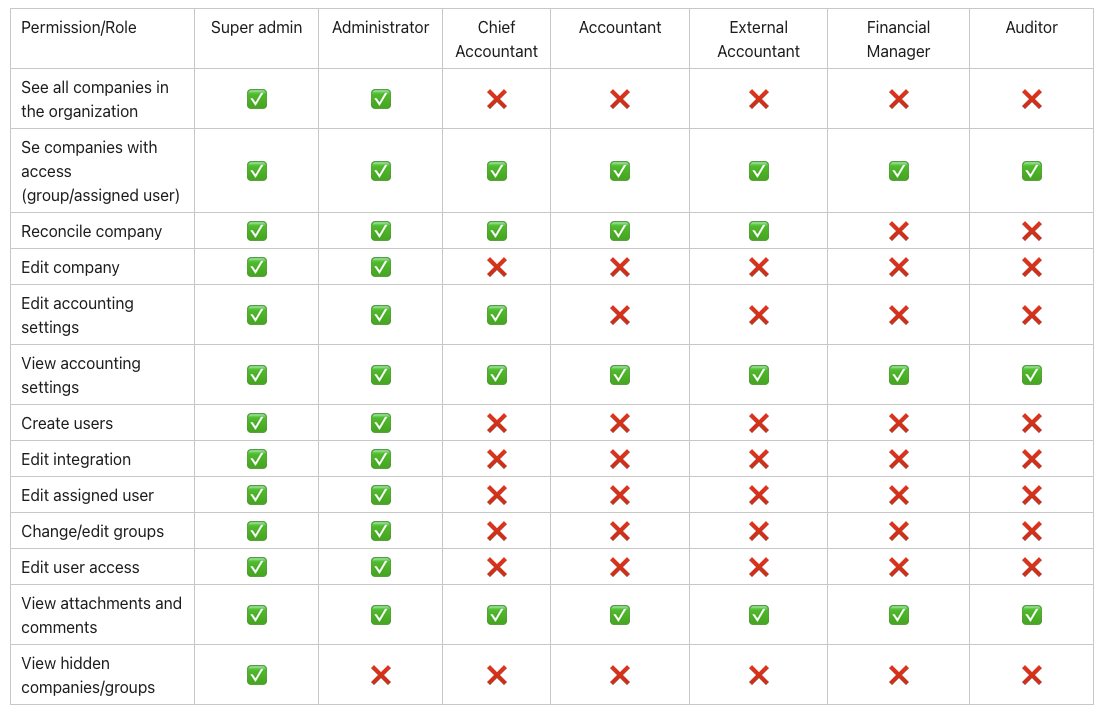
- Role and user groups (see overview of user roles at the bottom of the article)
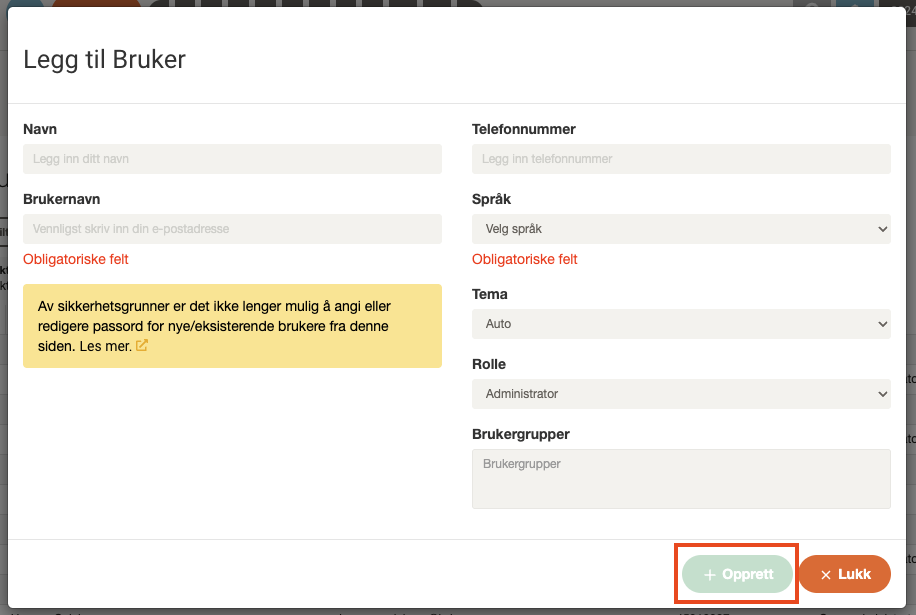
4. Click “Create”
- When the form is completed, click Create to send the invitation to the user.
- The user will receive an email with an invitation and instructions to set their own password.
Overview of roles and permissions