Step by step: Connect to Finago
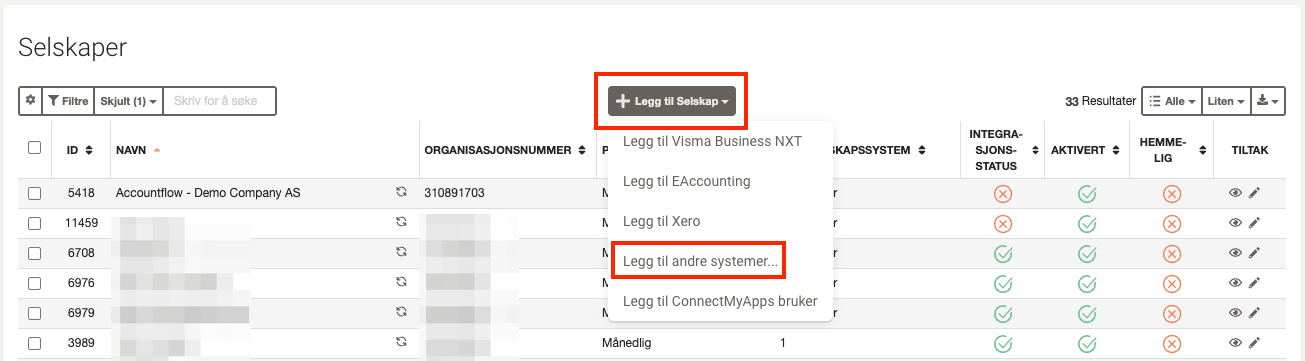
1. Add the company in Accountflow
- Go to Company under Settings & Admin in the menu on the left.
- Click Add company and select Add other systems from the dropdown menu.
2. Enter company information
- Company name
- Company comment (optional internal note)
- Organization number
- Period type (e.g., monthly reconciliation)
- Start month for the financial year (if deviating)
- Start date for reconciliation (controls start of data retrieval including A07 messages)
- Responsible user (who will own the reconciliation)
- VAT reporting frequency
- Company groups (if applicable)
- Tick any modules you wish to activate: Payroll, VAT, Assets
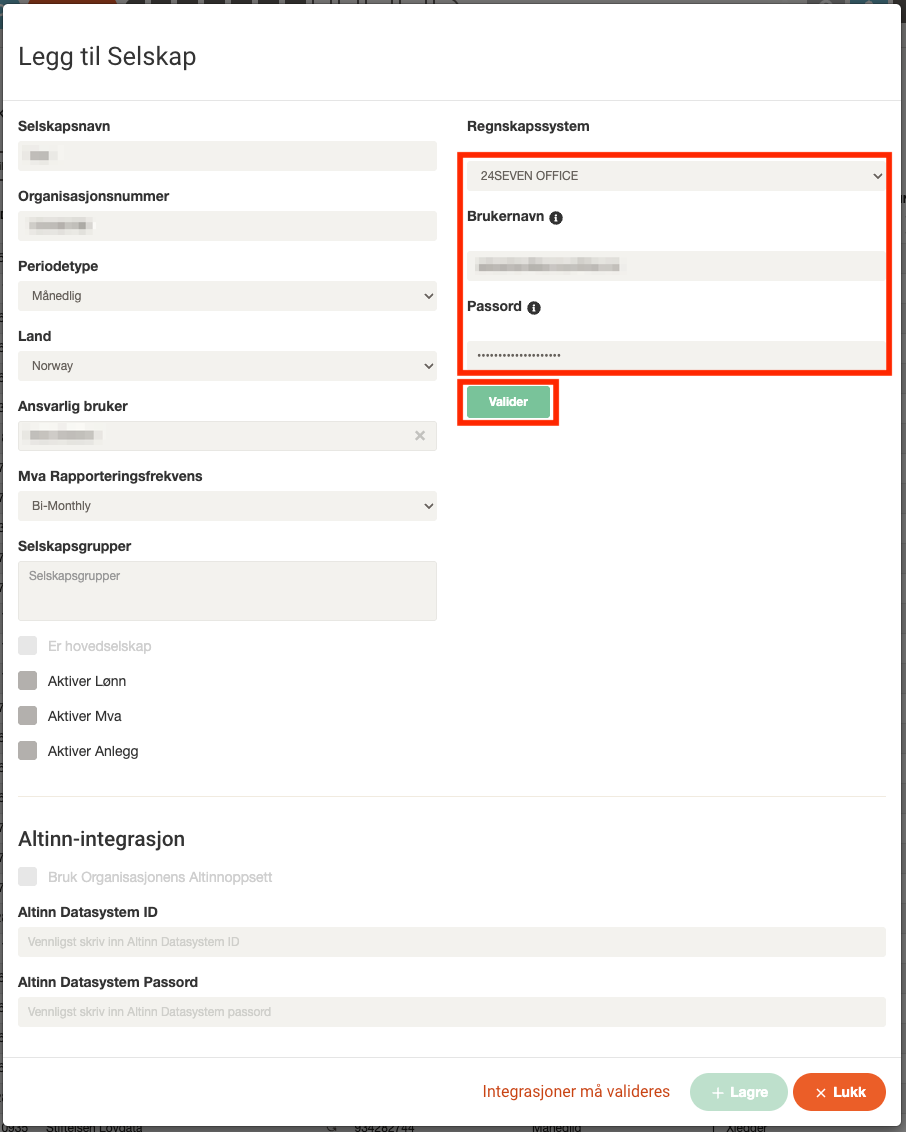
3. Select accounting system
- Select 24SevenOffice as the accounting system.
- Enter the username and password of a user who has access to the company in Finago.
- Click Validate.
💡 Make sure that the user you enter has access to the company you want to reconcile.
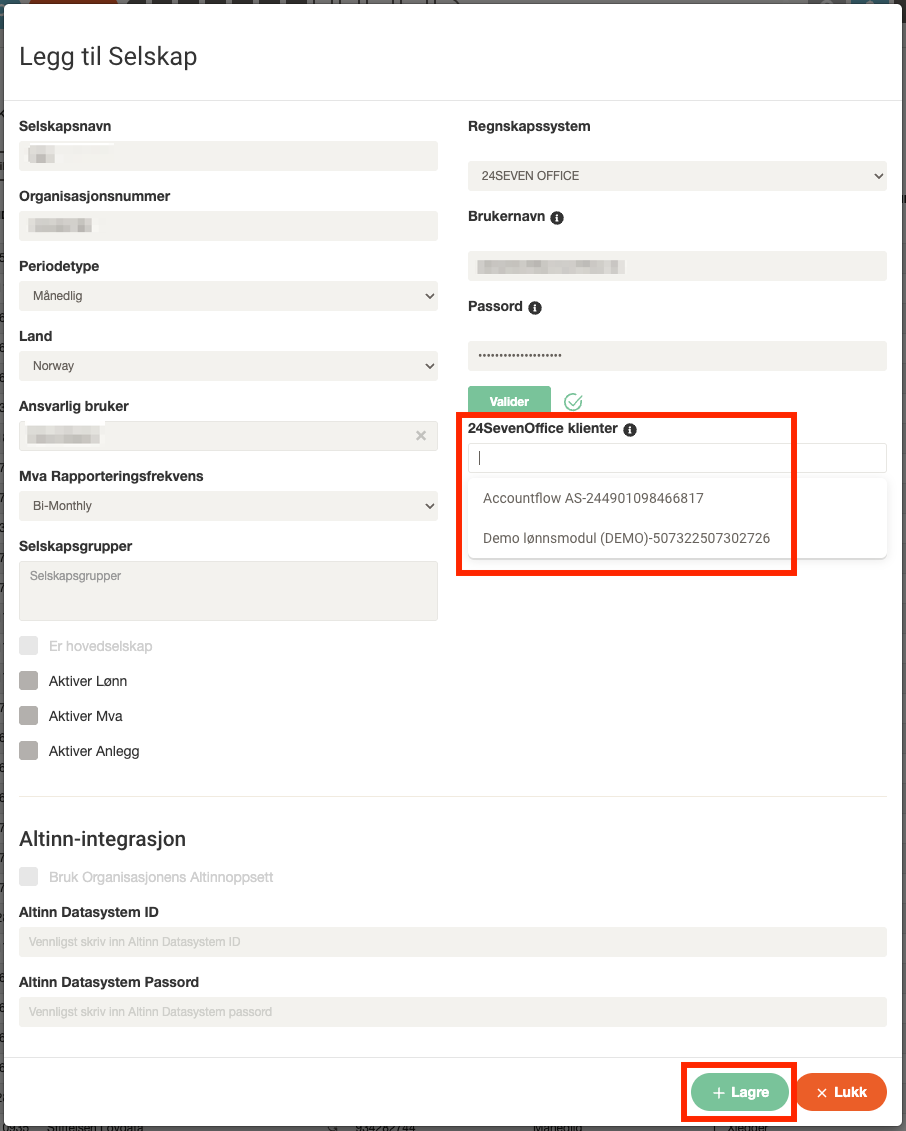
Select client
- Once validation is complete, a dropdown list with available companies will appear.
- Select the desired company from the list.
- Click Save.