What you need before you start
- BankID
- Read access in Aiia to the bank account you want to connect
- Accountflow user
Step by step: Connect bank account
1. Go to bank settings
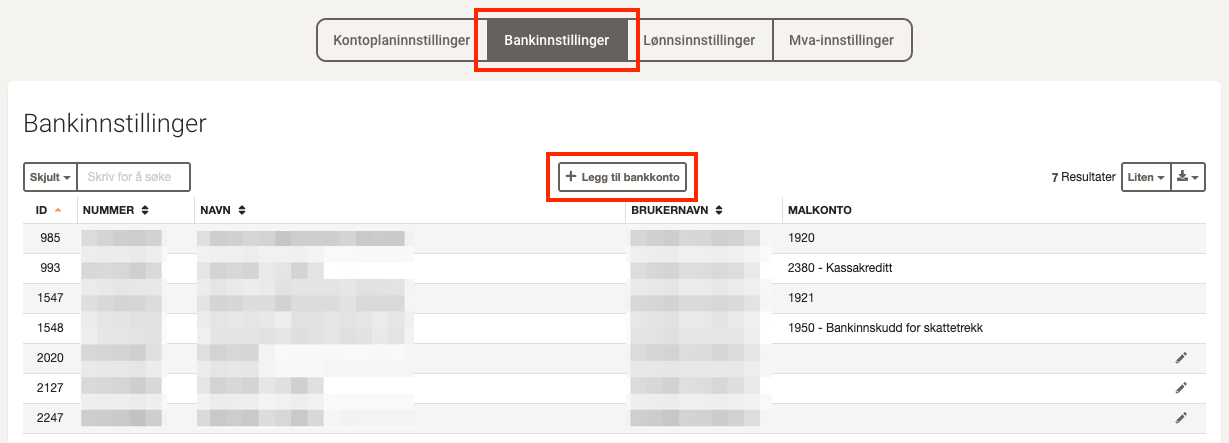
- Go to Reconciliation under Settings & Admin in the menu on the left.
- Click on the Bank settings tab.
- Click + Add bank account.
2. Go to login
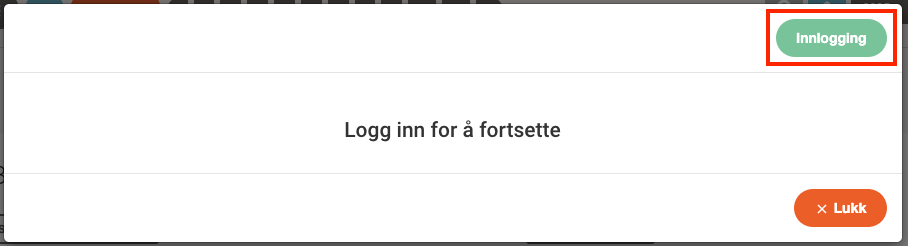
- Click Rejoin in the top right of the window that opens.
3. Log in to Aiia
- You will be redirected to Aiia. Log in or create an account.
- If this is your first time logging in, follow the instructions to connect your bank.
- Then select the desired account and click Continue.
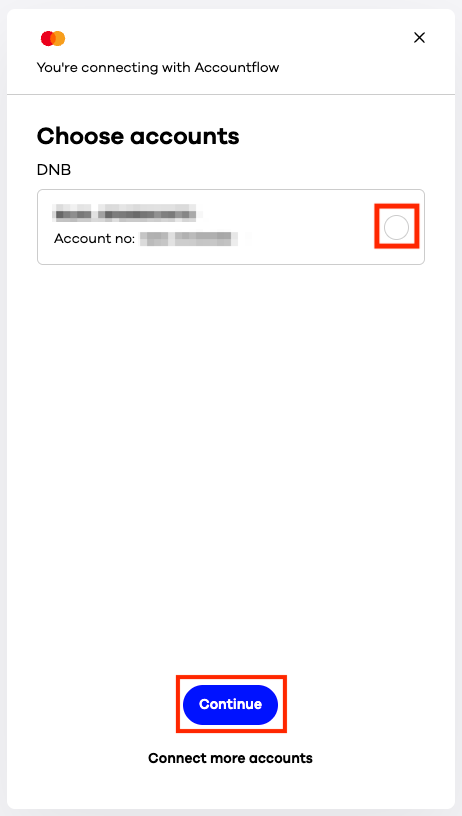
💡 If the account you want to connect does not appear, click Connect more accounts.
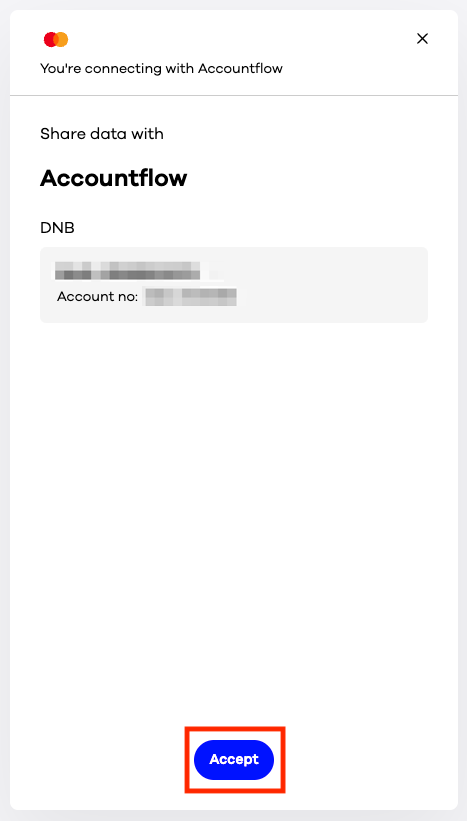
4. Approve data sharing
- Approve the request to share data from the selected account with Accountflow.
- Select the account(s) again and click Continue twice.
- You will be redirected back to Accountflow.
5. Complete the connection in Accountflow
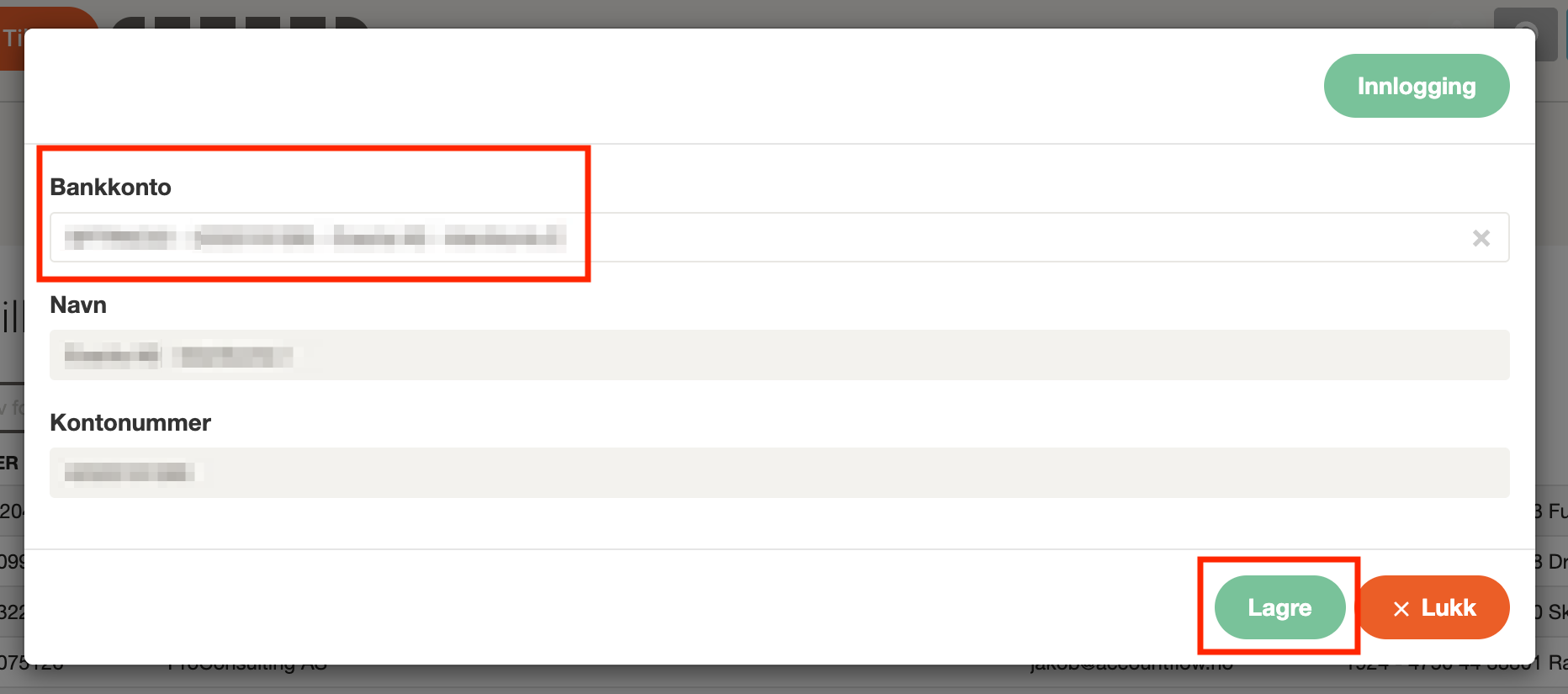
- Go to + Add bank account again.
- Select the account you just connected from the dropdown menu.
- Click Save to complete the connection.
6. Link template account in Accountflow
- The account will now be displayed in the list under Bank settings.
- Click the pencil icon to the right of the account in the Template account column.
- Select which account in Accountflow the bank account should be linked to.
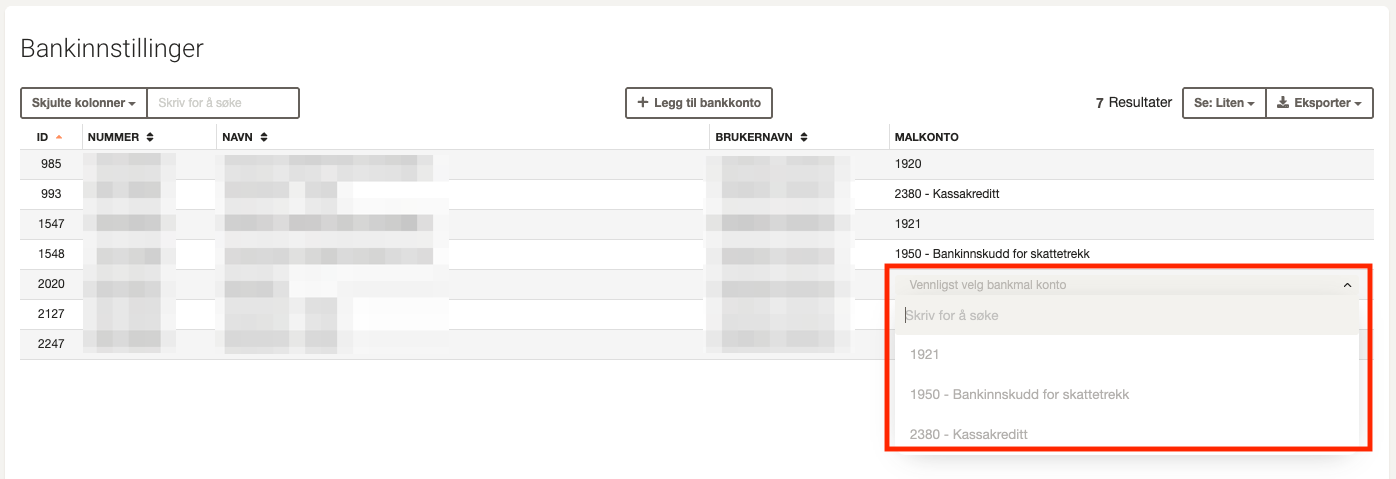
💡 You cannot select a template account already linked to another bank account. Once a template account is chosen, it cannot be changed – contact support if you need help changing it.
7. Fetch transactions
- Go to Account under Reconciliation in the menu on the left.
- Click on the account you set up.
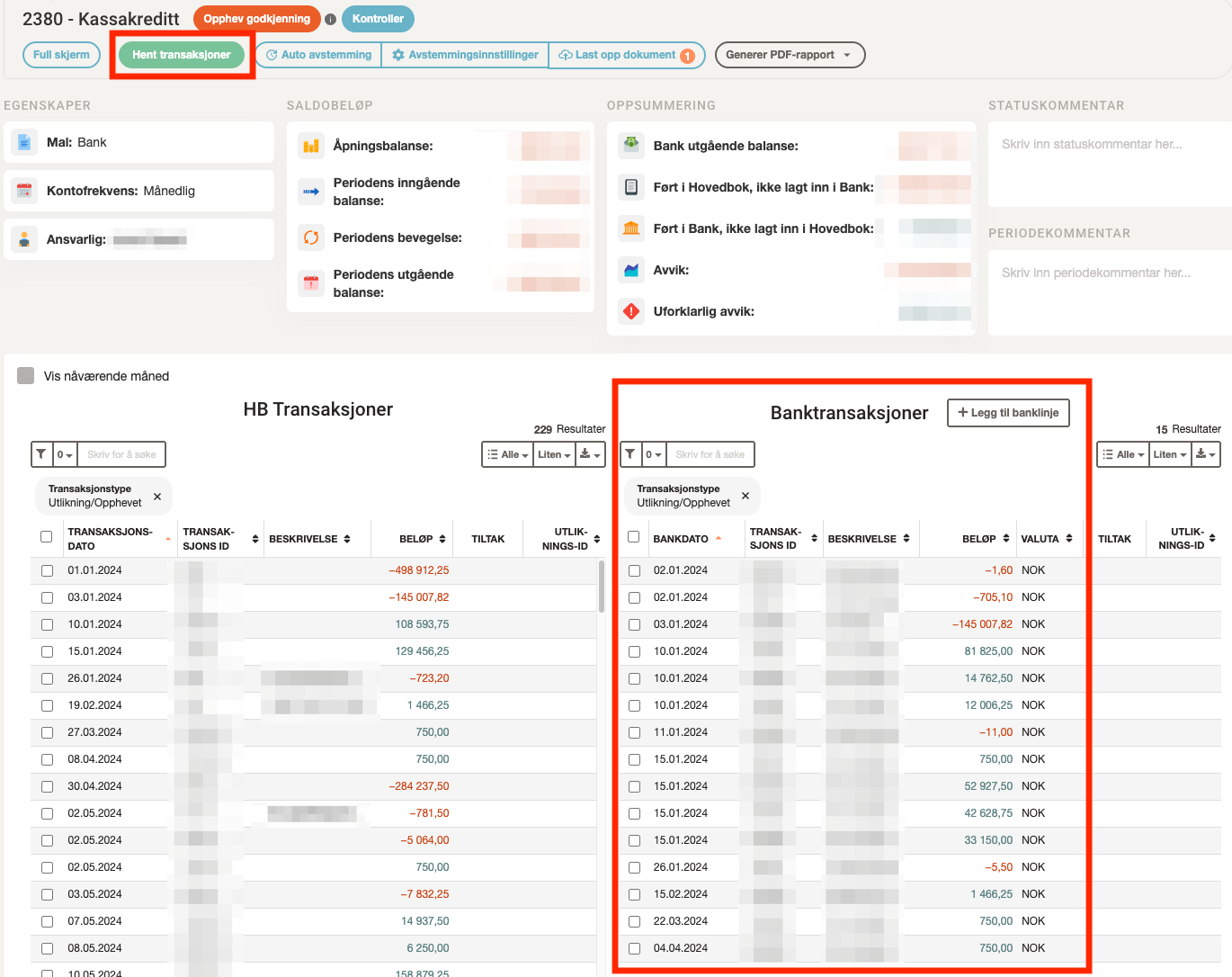
- Click the green Fetch transactions button at the top of the page.
- The transactions will appear under Bank transactions.