
💡 It is not possible to delete a company in Accountflow. When you close a client, the company is therefore made inactive so it is no longer used in daily work.
Step-by-step: Close a company
1. Edit the company
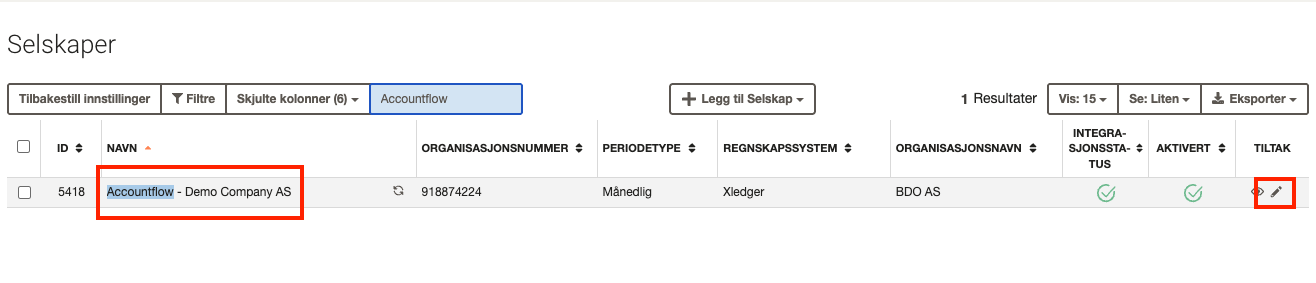
- Go to Company under Setup & Admin in the menu on the left.
- Find the company you want to close.
- Click the pencil icon in the Actions column.
2. Change the company name and organisation number
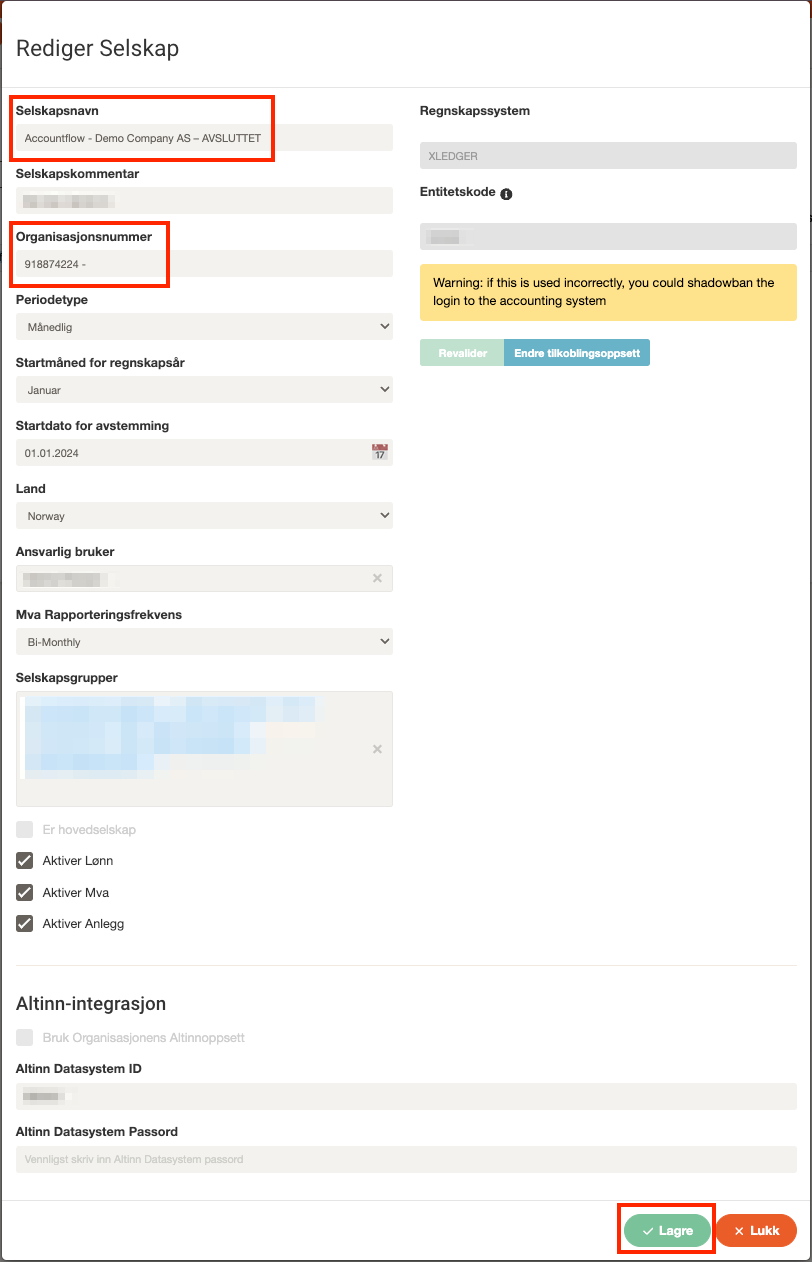
- Change the name to, for example, “Company name – CLOSED” or “Company name – OLD”.
- Add a hyphen after the organisation number. This prevents the system from fetching new a-messages for the company.
- Finish by clicking Save.
💡 This step is important to prevent data from continuing to update for a client you have closed.
3. Deactivate the company (optional)
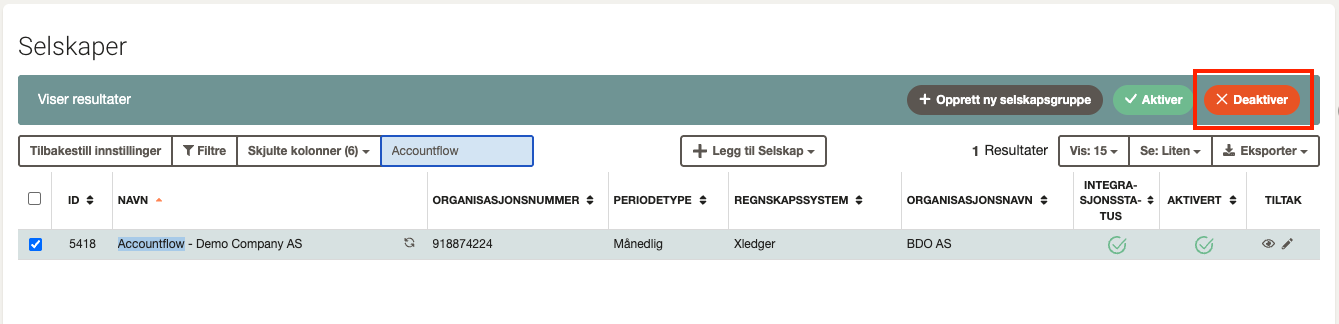
- Go back to Company under Setup & Admin.
- Select the company in the list.
- Click Deactivate in the top right corner.
💡 If users without super admin access should still be able to see the company, you should not deactivate it.
4. Download documentation
Before closing or deactivating the company, it is a good idea to download important documentation:
- Download relevant report packages from the company.
- Make sure all history is available for future needs.
💡 There is no transfer function between companies in Accountflow, so all documentation must be retrieved manually.
Tips when closing a company
- Use a consistent naming standard (for example “– CLOSED”) so closed clients are easy to recognise.
- Consider grouping closed companies in a separate company group.
- Do not delete users or groups until you are sure they are not used by other active companies.