Step by step: Change holiday pay settings
1. Go to Vacation pay
- Click Payroll under Reconciliation in the menu on the left.
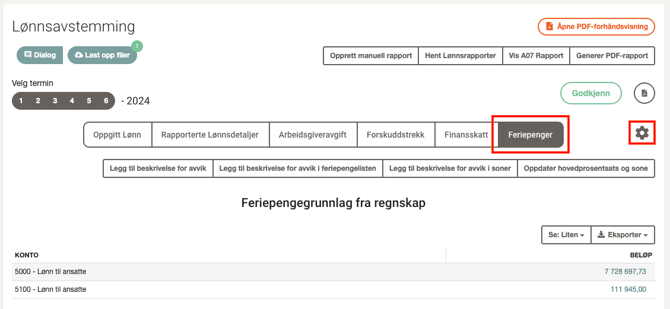
- Go to the Vacation Pay tab.
2. Select accounts that form the vacation pay basis
- You can choose which accounts affect the vacation pay basis.
- View and edit them in Payroll settings by clicking the gear icon in the top right.
3. Update percentage and zone
- Go back to the Vacation pay tab and click Update main percentage and zone.
- Remove existing values and choose a new rate and zone.
- Click Save to confirm
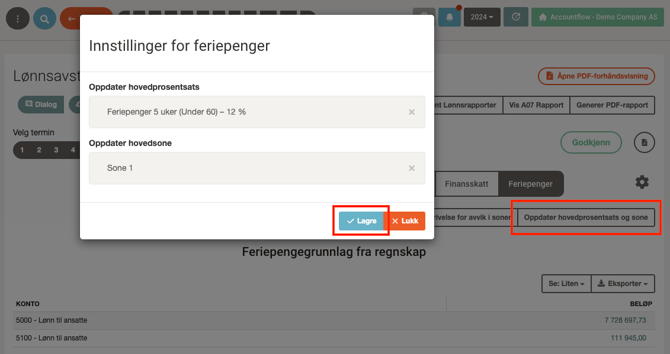
💡 If the period is already approved, you must unapprove it or select a new period first.
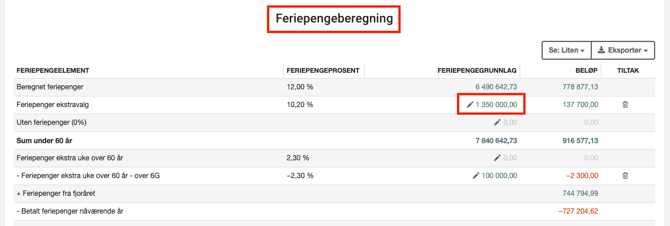
4. Use multiple rates
- To adjust differences caused by vacation pay with a different rate (e.g. vacation pay for employees over 60, or without vacation pay), enter the correct vacation pay basis by clicking the pencil icon on the relevant row.
- The system will automatically calculate the difference.
5. Add multiple contribution zones
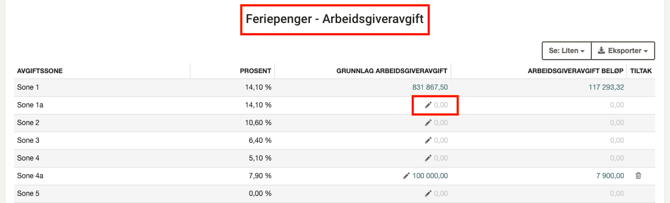
- Scroll down to Vacation Pay - Social Security to see an overview of employer’s contribution (AGA) on vacation pay.
- Here you can enter the basis for multiple zones.
- Click the pencil icon to enter the AGA basis per zone.
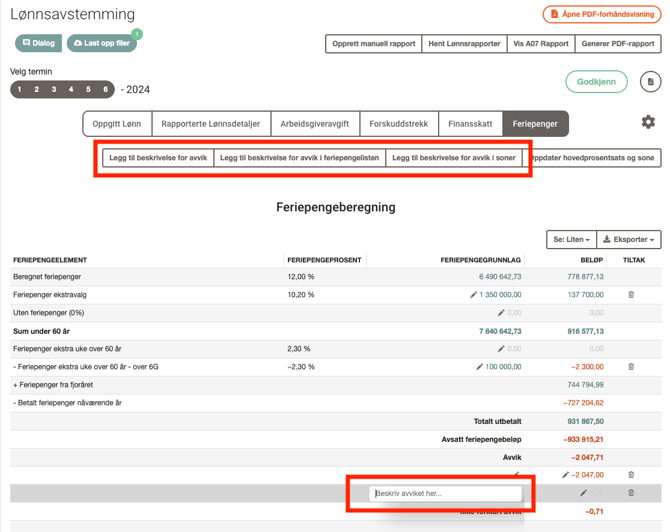
6. Add explanations for deviations
- At the bottom, you can add explanations for deviations in amounts, vacation pay calculation, or zones.
- When you click one of the buttons, a new row is added to the overview.
- Use the pencil icon to add a description, and the trash can icon to delete the row.