Step by step: Add multiple companies at once
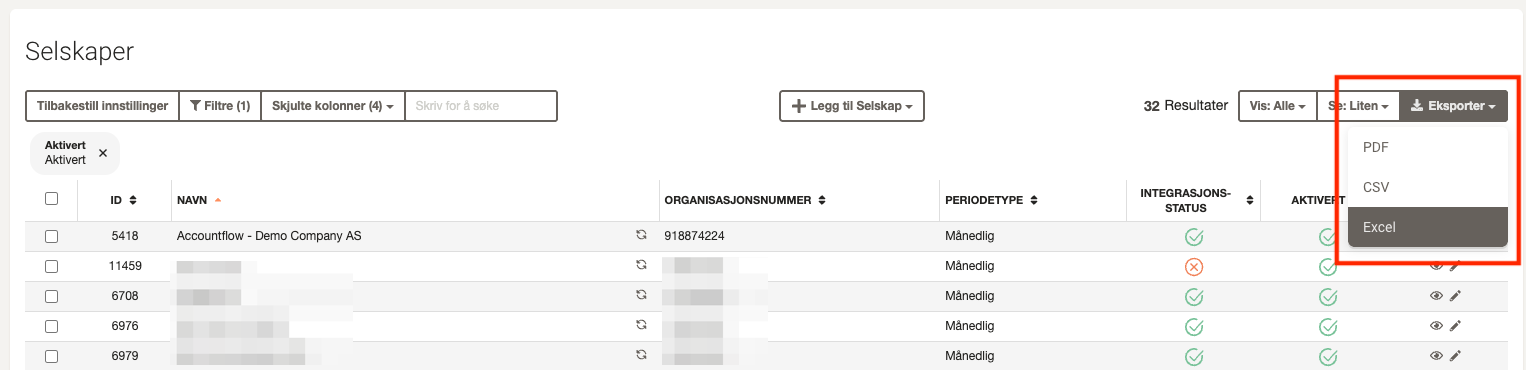
1. Export the company overview
- Go to Company under Settings & Admin in the menu on the left.
- Click Export in the top right and choose Excel to download the overview.
2. Copy the company names
- Open the Excel file.
- Select and copy the names from the Name column.

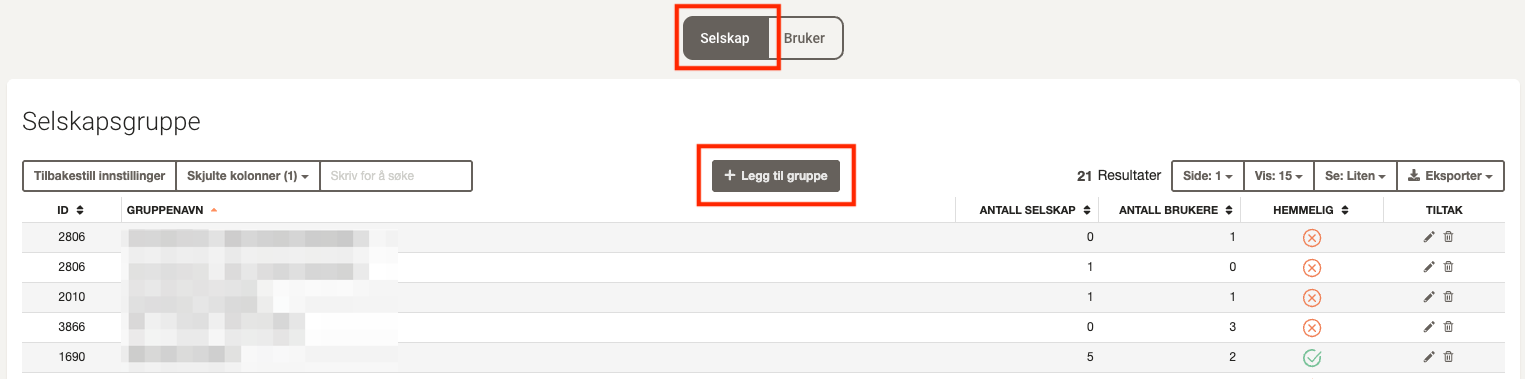
3. Go to company groups
- Go to Group under Settings & Admin in the menu on the left.
- Click Add group under the Company tab.
4. Paste the companies from Excel
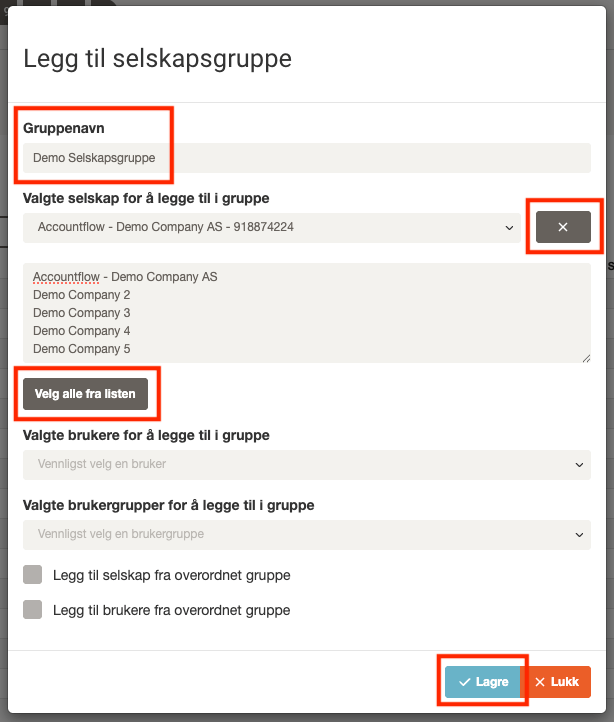
- Enter a name for the group.
- Click the file icon to the right of the Selected companies field to add to the group.
- Paste the list of company names into the large field below and click Select all from list.
💡 It is important that you paste directly from Excel – do not enter the names manually.
5. Add users and groups (optional)
- Select users and/or user groups who should have access to the group.
6. Save the group
- Click Save to complete.